> ## Documentation Index
> Fetch the complete documentation index at: https://cockroachlabs.mintlify.site/llms.txt
> Use this file to discover all available pages before exploring further.
# Create a CockroachDB Cloud account
export const InternalLink = ({version, path = "", children, ...props}) => {
let detectedVersion = version || "stable";
if (typeof window !== 'undefined' && !version) {
const match = window.location.pathname.match(/\/docs\/([^/]+)/);
if (match) {
detectedVersion = match[1];
}
}
const normalizedPath = path.startsWith("/") ? path.slice(1) : path;
return
{children}
;
};
Before you create a CockroachDB Cloud cluster, you must first create a CockroachDB Cloud account. You can register for CockroachDB Cloud using a GitHub, Google, or Microsoft account or an email address and password.
If your organization uses Cloud Organization SSO, you may be able to sign in without registering or waiting to be invited. Check with an Organization Admin. If you sign in using a URL other than [https://cockroachlabs.cloud](https://cockroachlabs.cloud/), Cloud Organization SSO is enabled for your organization.
## Choose an authentication method
You may authenticate to CockroachDB Cloud console using an email and password, or with Single Sign-on (SSO). The console supports SSO provided by GitHub, Google, and Microsoft, as well as identity providers with support for OIDC or SAML protocols..
SSO provides security benefits. This includes not having to manage an additional credential, and perhaps most importantly, that SSO providers support multi-factor authentication (MFA). For best security, we recommend that all CockroachDB Cloud users authenticate with SSO, with MFA enabled.
## Register a new account
To register a new account, navigate to the [CockroachDB Cloud registration page](https://cockroachlabs.cloud/signup?referralId=docs_create_account).
1. On the [registration page](https://cockroachlabs.cloud/signup?referralId=docs_create_account), click **Sign up with...** for your chosen SSO Provider.
2. Select the checkbox to accept the [terms of service](https://www.cockroachlabs.com/cloud-terms-and-conditions) and [privacy policy](https://www.cockroachlabs.com/privacy).
3. Log in to your account with your SSO provider and respond to the email or other notification inviting you to **Authorize CockroachDB Cloud by Cockroach Labs**
We highly recommend enabling multi-factor authentication (MFA) with your SSO provider, if you have not done so.
1. On the [registration page](https://cockroachlabs.cloud/signup?referralId=docs_create_account), click **Sign up with email**.
2. Enter an email address and password for CockroachDB Cloud.
3. Accept the [Terms of Service](https://www.cockroachlabs.com/cloud-terms-and-conditions) and [Privacy Policy](https://www.cockroachlabs.com/privacy), then click **Get Started**.
4. Check your email for a message from Cockroach Labs. In the email, click **Verify my email** to confirm your account and continue registering on the CockroachDB Cloud site.
5. Enter your name and company details, and then click **Next step**.
6. Answer the onboarding survey questions and click **Finish Setup**.
## Log in to your account
1. Navigate to the CockroachDB Cloud [log in page](https://cockroachlabs.cloud/clusters).
2. Click **Log in with...** for your chosen SSO provider.
3. Watch for a pop-up or modal from your SSO Provider and follow the prompts to log in.
1. Navigate to the CockroachDB Cloud [log in page](https://cockroachlabs.cloud/clusters).
2. Enter your **Email** and **Password**.
3. Click **Continue**.
The **Clusters** page displays.
## Change your account details
### Change your account name
To change your account name:
1. Click the account icon in the top right corner.
2. From the dropdown, select **My Account**.
3. Click the pencil icon in the **Name** row.
4. In the **Edit name** dialog, enter your **Name**.
5. Click **Save**.
### Change your email
If you registered with an email address, you can change your account password in the CockroachDB Cloud Console:
1. Click the account icon in the top right corner.
2. From the dropdown, select **My Account**.
3. Click the pencil icon in the **Email address** row.
4. In the **Change email address** dialog, enter the new **Email address**.
5. Click **Save**.
A confirmation email will be sent to the new email address. Click **Verify email** in the email to confirm the change.
### Change your account password
If you registered with an email address, you can change your account password in the CockroachDB Cloud Console:
1. Click the account icon in the top right corner.
2. From the dropdown, select **My Account**.
3. Click the pencil icon in the **Password** row.
4. In the **Change password** dialog, enter your **Current password** and **New password**.
5. Click **Save**.
Changing your account password will *not* change your SQL user password.
### Change your organization name
If you are an Organization Admin, you can change your organization name:
1. Navigate to the **Settings** page.
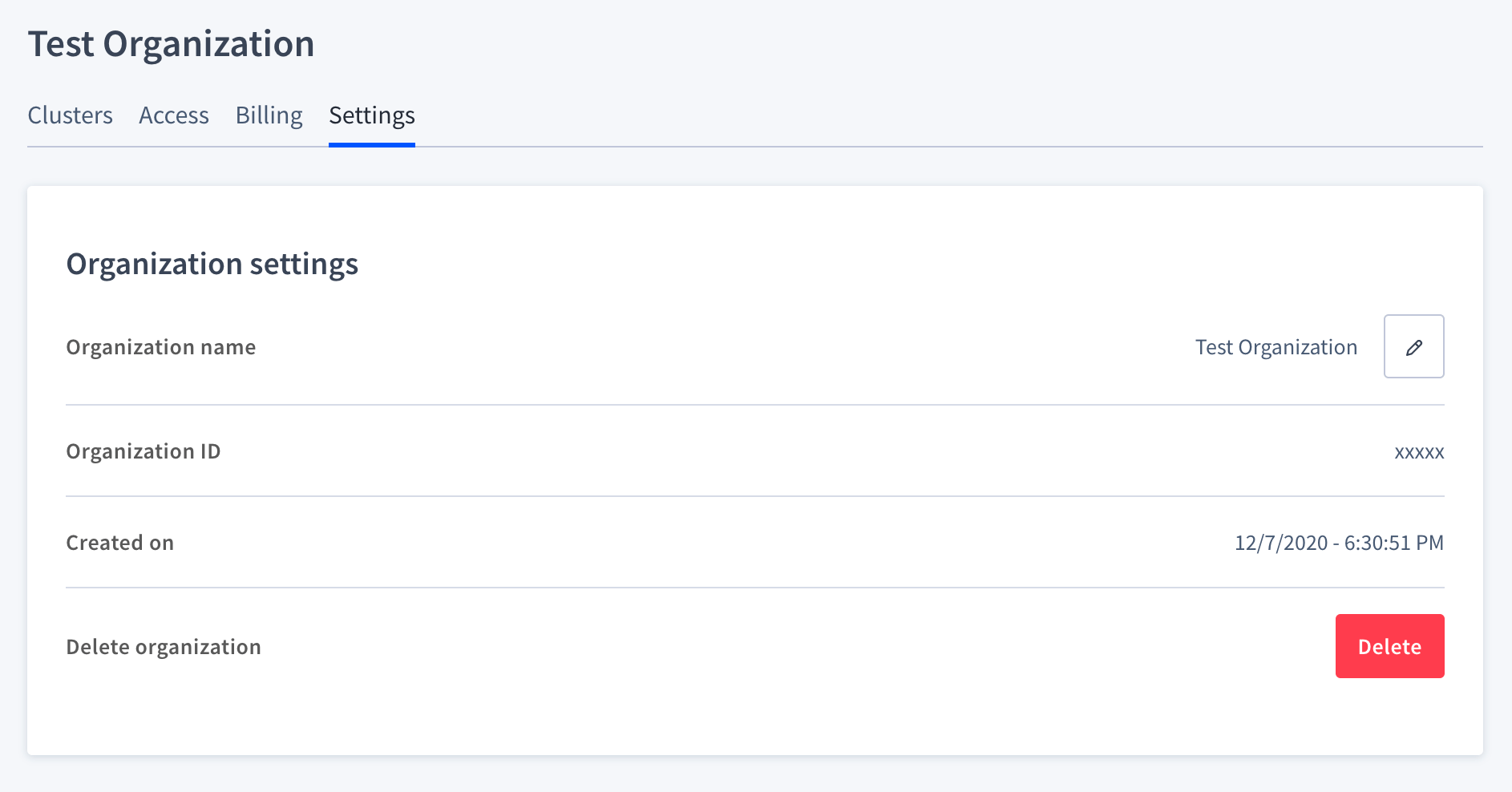 2. Click the pencil icon in the **Organization name** row.
3. In the **Edit organization name** dialog, enter the new **Organization name**.
4. Click **Save**.
### Change your login method
You can change your method of login authentication (email/password or SSO with a specific provider), in the [**My Account** page in the CockroachDB Cloud Console](https://cockroachlabs.cloud/account/profile).
Once you have changed your authentication method, you will receive a confirmation email.
2. Click the pencil icon in the **Organization name** row.
3. In the **Edit organization name** dialog, enter the new **Organization name**.
4. Click **Save**.
### Change your login method
You can change your method of login authentication (email/password or SSO with a specific provider), in the [**My Account** page in the CockroachDB Cloud Console](https://cockroachlabs.cloud/account/profile).
Once you have changed your authentication method, you will receive a confirmation email.