> ## Documentation Index
> Fetch the complete documentation index at: https://cockroachlabs.mintlify.site/llms.txt
> Use this file to discover all available pages before exploring further.
# Visualize CockroachDB Schemas with DBeaver
export const InternalLink = ({version, path = "", children, ...props}) => {
let detectedVersion = version || "stable";
if (typeof window !== 'undefined' && !version) {
const match = window.location.pathname.match(/\/docs\/([^/]+)/);
if (match) {
detectedVersion = match[1];
}
}
const normalizedPath = path.startsWith("/") ? path.slice(1) : path;
return
{children}
;
};
The [DBeaver database tool](https://dbeaver.io/) is a tool that completely integrates with CockroachDB to provide a GUI for managing your database.
According to the [DBeaver website](https://dbeaver.io/):
> DBeaver is a cross-platform Database GUI tool for developers, SQL programmers, database administrators, and analysts.
In this tutorial, you'll work through the process of using DBeaver with a secure CockroachDB cluster.
For more information about using DBeaver, see the [DBeaver documentation](https://dbeaver.io/docs).
If you run into problems, please file an issue on the [DBeaver issue tracker](https://github.com/dbeaver/dbeaver/issues).
For information on using DBeaver with CockroachDB Cloud, see [this blog post](https://paul-logston.medium.com/setting-up-a-sql-gui-with-cockroachdb-a9fd5fe15d9d).
## Before You Begin
To work through this tutorial, take the following steps:
* Install CockroachDB and start a secure cluster.
* Download a copy of [DBeaver](https://dbeaver.io/download) version 5.2.3 or greater.
## Step 1. Start DBeaver and connect to CockroachDB
1. Start DBeaver, and select **Database > New Connection** from the menu. In the dialog that appears, select **CockroachDB** from the list.
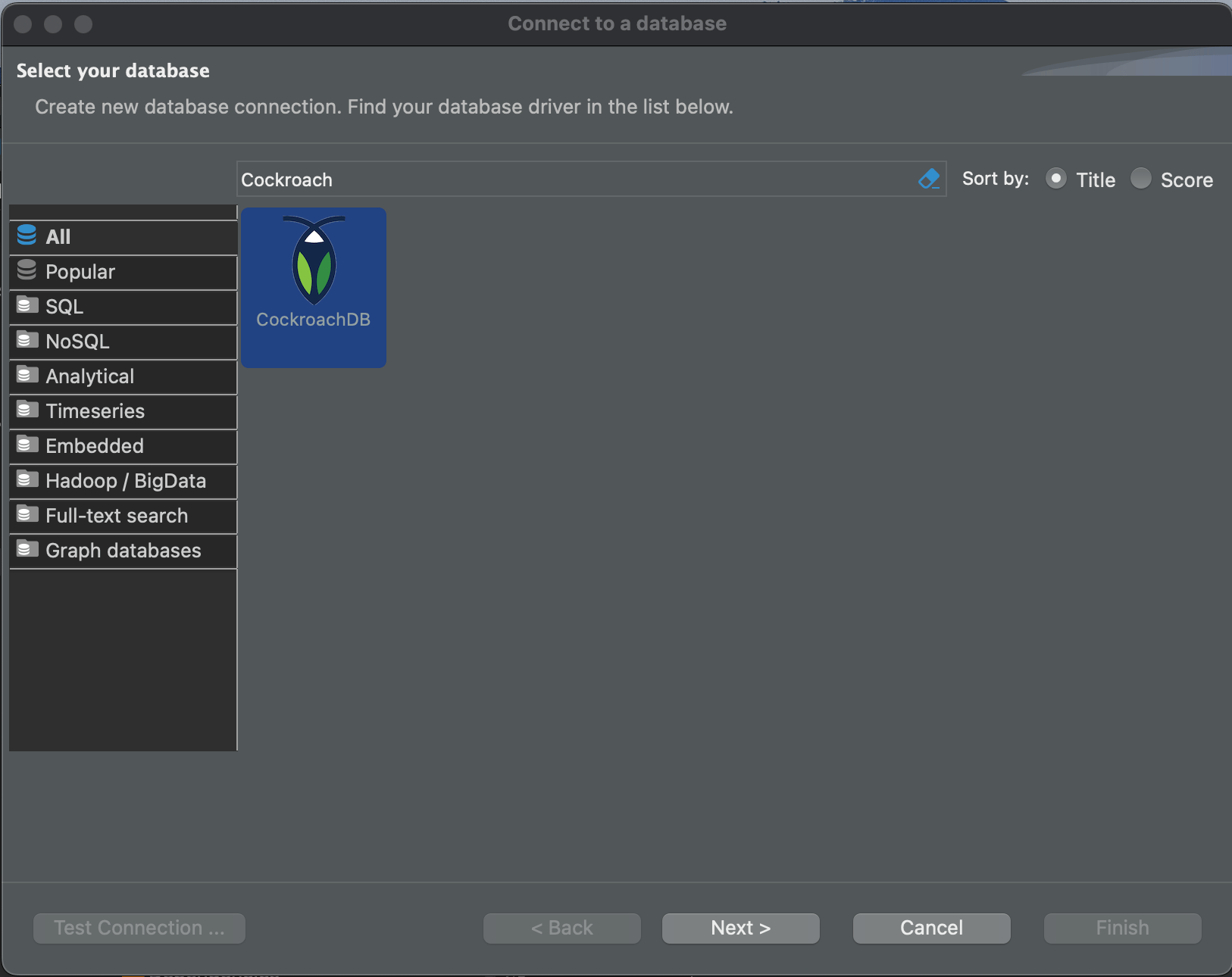 2. Click **Next**. The **Connection Settings** dialog displays.
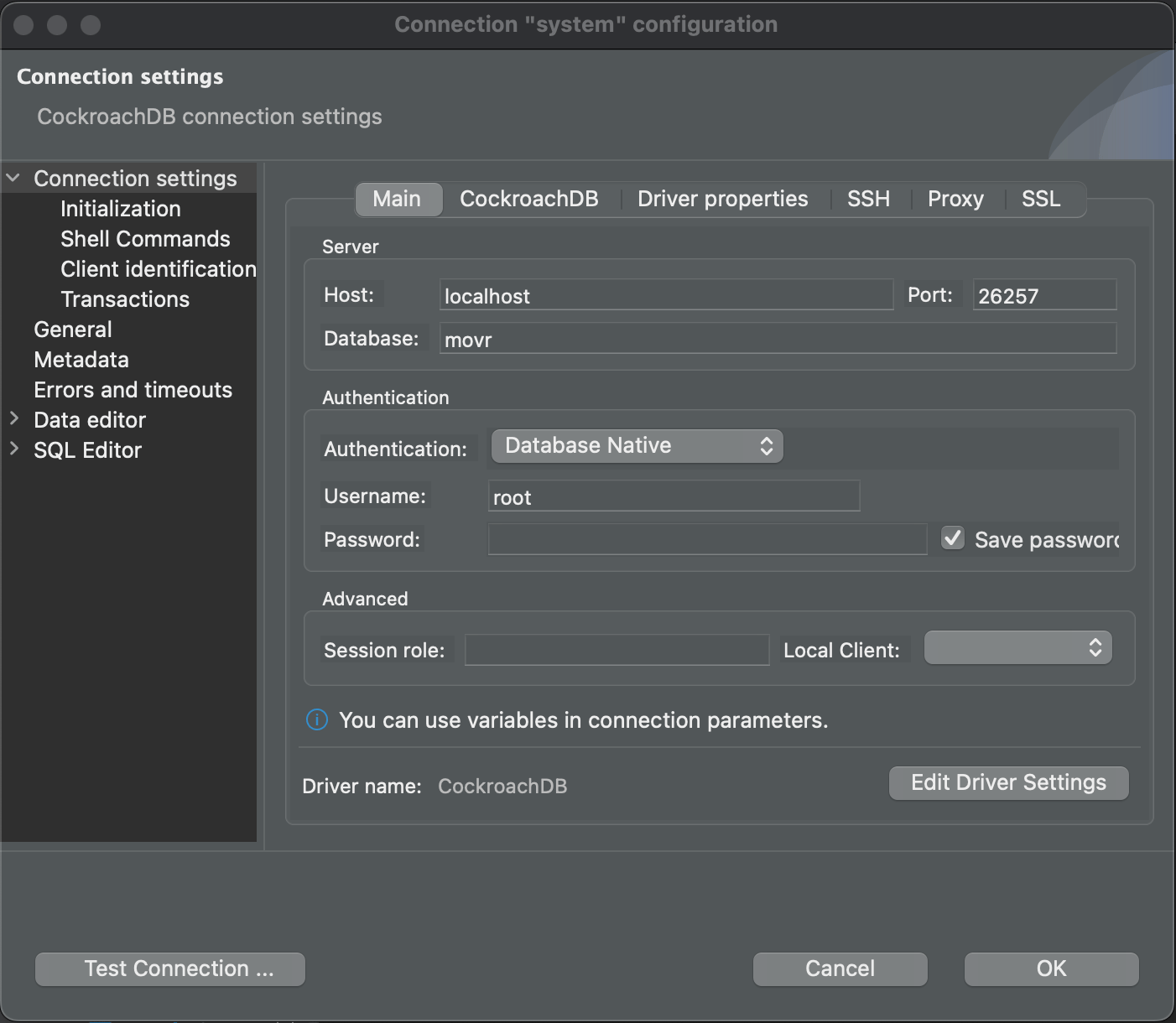
3. In the **Database** field, enter `movr`.
2. Click **Next**. The **Connection Settings** dialog displays.
3. In the **Database** field, enter `movr`.
 ## Step 2. Update the connection settings
1. Click the **SSL** tab.
## Step 2. Update the connection settings
1. Click the **SSL** tab.
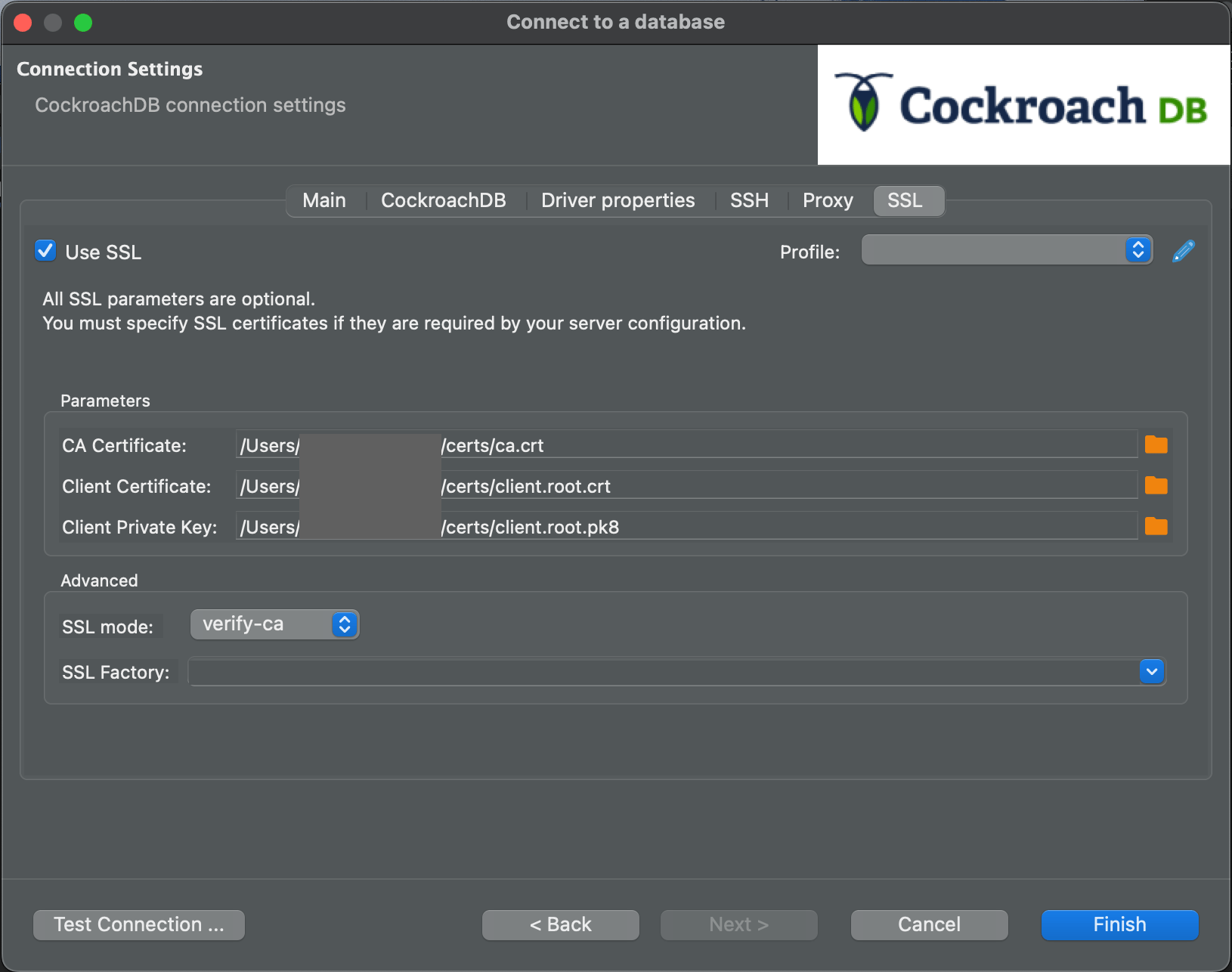 2. Check the **Use SSL** checkbox as shown, and fill in the text areas as follows:
* **Root certificate**: Use the `ca.crt` file you generated for your secure cluster.
* **SSL certificate**: Use a client certificate generated from your cluster's root certificate. For the root user, this will be named `client.root.crt`. For additional security, you may want to create a new database user and client certificate just for use with DBeaver.
* **SSL certificate key**: Because DBeaver is a Java application, you will need to transform your key file to the `*.pk8` format using an [OpenSSL command](https://wiki.openssl.org/index.php/Command_Line_Utilities#pkcs8_.2F_pkcs5) like the one shown in the following snippet. Once you have created the file, enter its location here. In this example, the filename is `client.root.pk8`.
```console theme={"theme":{"light":"catppuccin-mocha","dark":"catppuccin-mocha"}}
$ openssl pkcs8 -topk8 -inform PEM -outform DER -in client.root.key -out client.root.pk8 -nocrypt
```
3. Select **verify-ca** or **verify-full** from the **SSL mode** dropdown. There is no need to set the **SSL Factory**; you can let DBeaver use the default.
## Step 3. Test the connection settings
1. Click **Test Connection...**. If you need a driver, the following dialog displays:
2. Check the **Use SSL** checkbox as shown, and fill in the text areas as follows:
* **Root certificate**: Use the `ca.crt` file you generated for your secure cluster.
* **SSL certificate**: Use a client certificate generated from your cluster's root certificate. For the root user, this will be named `client.root.crt`. For additional security, you may want to create a new database user and client certificate just for use with DBeaver.
* **SSL certificate key**: Because DBeaver is a Java application, you will need to transform your key file to the `*.pk8` format using an [OpenSSL command](https://wiki.openssl.org/index.php/Command_Line_Utilities#pkcs8_.2F_pkcs5) like the one shown in the following snippet. Once you have created the file, enter its location here. In this example, the filename is `client.root.pk8`.
```console theme={"theme":{"light":"catppuccin-mocha","dark":"catppuccin-mocha"}}
$ openssl pkcs8 -topk8 -inform PEM -outform DER -in client.root.key -out client.root.pk8 -nocrypt
```
3. Select **verify-ca** or **verify-full** from the **SSL mode** dropdown. There is no need to set the **SSL Factory**; you can let DBeaver use the default.
## Step 3. Test the connection settings
1. Click **Test Connection...**. If you need a driver, the following dialog displays:
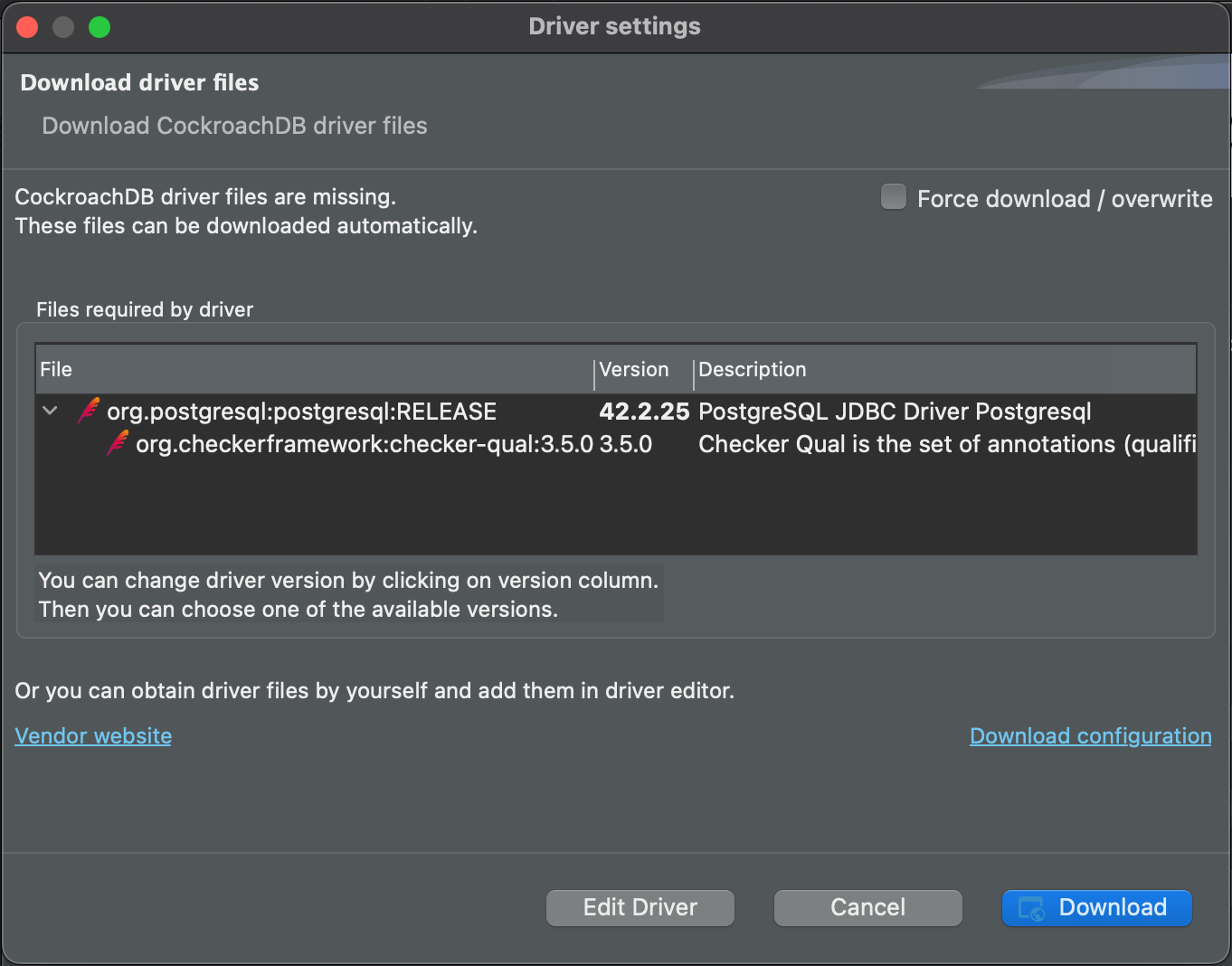 2. Click **Download**.
After the driver downloads, if the connection was successful, you will see a **Connected** dialog.
2. Click **Download**.
After the driver downloads, if the connection was successful, you will see a **Connected** dialog.
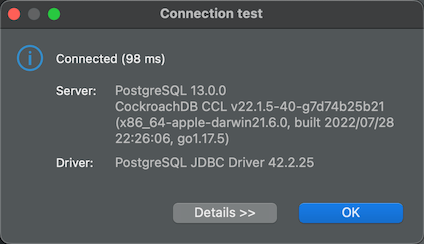 3. Click **OK** to dismiss the dialog.
## Step 4. Start using DBeaver
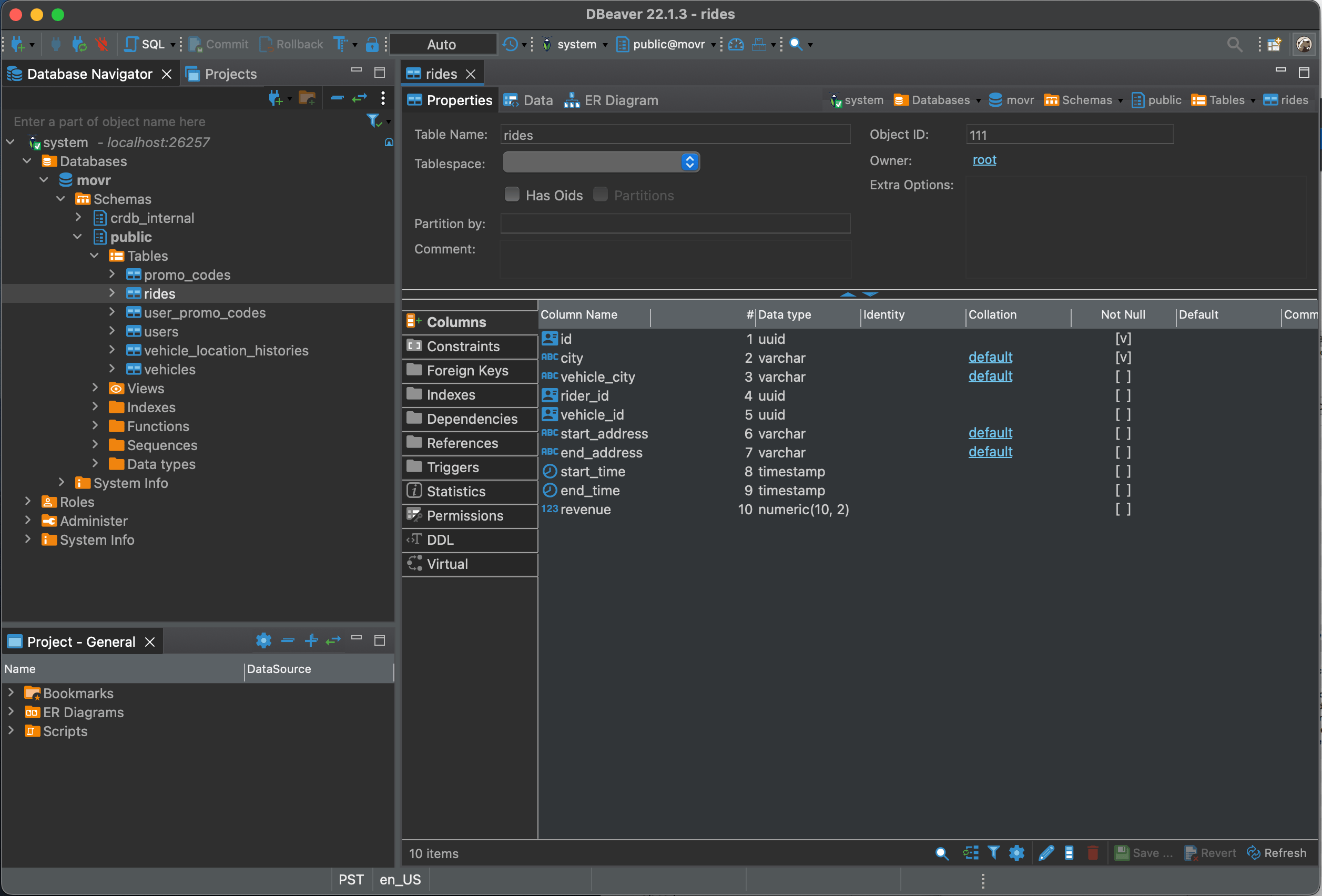
Expand the **movr** database node and navigate to the **rides** table.
3. Click **OK** to dismiss the dialog.
## Step 4. Start using DBeaver
Expand the **movr** database node and navigate to the **rides** table.
 For more information about using DBeaver, see the [DBeaver documentation](https://dbeaver.io/docs).
## Report Issues with DBeaver & CockroachDB
If you run into problems, please file an issue on the [DBeaver issue tracker](https://github.com/dbeaver/dbeaver/issues), including the following details about the environment where you encountered the issue:
* CockroachDB version ( `cockroach version` )
* DBeaver version
* Operating system
* Steps to reproduce the behavior
* If possible, a trace of the SQL statements sent to CockroachDB while the error is being reproduced using SQL query logging.
## See Also
* [DBeaver documentation](https://dbeaver.io/docs)
* [DBeaver issue tracker](https://github.com/dbeaver/dbeaver/issues)
* Client connection parameters
* Third-Party Database Tools
* Learn CockroachDB SQL
For more information about using DBeaver, see the [DBeaver documentation](https://dbeaver.io/docs).
## Report Issues with DBeaver & CockroachDB
If you run into problems, please file an issue on the [DBeaver issue tracker](https://github.com/dbeaver/dbeaver/issues), including the following details about the environment where you encountered the issue:
* CockroachDB version ( `cockroach version` )
* DBeaver version
* Operating system
* Steps to reproduce the behavior
* If possible, a trace of the SQL statements sent to CockroachDB while the error is being reproduced using SQL query logging.
## See Also
* [DBeaver documentation](https://dbeaver.io/docs)
* [DBeaver issue tracker](https://github.com/dbeaver/dbeaver/issues)
* Client connection parameters
* Third-Party Database Tools
* Learn CockroachDB SQL