

cockroach demo starts a temporary, in-memory CockroachDB cluster of one or more nodes, with or without a preloaded dataset, and opens an interactive SQL shell to the cluster.
- All SQL shell commands, client-side options, help, and shortcuts supported by the command are also supported by
cockroach demo. - The in-memory cluster persists only as long as the SQL shell is open. As soon as the shell is exited, the cluster and all its data are permanently destroyed. This command is therefore recommended only as an easy way to experiment with the CockroachDB SQL dialect.
- By default,
cockroach demostarts in secure mode using TLS certificates to encrypt network communication. It also serves a local DB Console that does not use TLS encryption. - Each instance of
cockroach demoloads a temporary Enterprise license that expires after 24 hours. To prevent the loading of a temporary license, set the--disable-demo-licenseflag. cockroach demoopens the SQL shell with a new nameddemo. Thedemouser is assigned a random password and granted the .
cockroach demo is designed for testing purposes only. It is not suitable for production deployments. To see a list of recommendations for production deployments, see the .Synopsis
View help forcockroach demo:
movr dataset pre-loaded:
movr workload against a demo cluster:
Datasets
| Workload | Description |
|---|---|
bank | A bank database, with one bank table containing account details. |
intro | An intro database, with one table, mytable, with a hidden message. |
kv | A kv database, with one key-value-style table. |
movr | A movr database, with several tables of data for the . By default, cockroach demo loads the movr database as the , with sample region (region) and availability zone (az) replica localities for each node specified with the . |
startrek | A startrek database, with two tables, episodes and quotes. |
tpcc | A tpcc database, with a rich schema of multiple tables. |
ycsb | A ycsb database, with a usertable from the Yahoo! Cloud Serving Benchmark. |
Flags
General
Thedemo command supports the following general-use flags.
| Flag | Description | |
|---|---|---|
--auto-enable-rangefeeds | Override the default behavior of cockroach demo, which has rangefeeds enabled on startup. If you do not need to use with your demo cluster, use --auto-enable-rangefeeds=false to disable rangefeeds and improve performance. See for more detail. Default:true | |
--cache | For each demo node, the total size for caches. This can be a percentage (notated as a decimal or with %) or any bytes-based unit, for example: --cache=.25 --cache=25% --cache=1000000000 ----> 1000000000 bytes --cache=1GB ----> 1000000000 bytes --cache=1GiB ----> 1073741824 bytes Default:64MiB | |
--demo-locality | Specify information for each demo node. The input is a colon-separated list of key-value pairs, where the ith pair is the locality setting for the ith demo cockroach node. For example, the following option assigns node 1’s region to us-east1 and availability zone to 1, node 2’s region to us-east2 and availability zone to 2, and node 3’s region to us-east3 and availability zone to 3: --demo-locality=region=us-east1,az=1:region=us-east1,az=2:region=us-east1,az=3 By default, cockroach demo uses sample region (region) and availability zone (az) replica localities for each node specified with the --nodes flag. | |
--disable-demo-license | Start the demo cluster without loading a temporary Enterprise license that expires after 24 hours. Setting the COCKROACH\_SKIP\_ENABLING\_DIAGNOSTIC\_REPORTING environment variable will also prevent the loading of a temporary license, along with preventing the sharing of anonymized with Cockroach Labs. | |
--echo-sql | Reveal the SQL statements sent implicitly by the command-line utility. This can also be enabled within the interactive SQL shell via the \set echoshell command. | |
--embedded | Minimizes the SQL shell welcome text to be appropriate for embedding in playground-type environments. Specifically, this flag removes details that users in an embedded environment have no control over (e.g., networking information). | |
--no-example-database | Start the demo cluster without a pre-loaded dataset. To obtain this behavior automatically in every new cockroach demo session, set the COCKROACH\_NO\_EXAMPLE\_DATABASE environment variable to true. | |
--execute -e | Execute SQL statements directly from the command line, without opening a shell. This flag can be set multiple times, and each instance can contain one or more statements separated by semi-colons. If an error occurs in any statement, the command exits with a non-zero status code and further statements are not executed. The results of each statement are printed to the standard output (see --format for formatting options). | |
--format | How to display table rows printed to the standard output. Possible values: tsv, csv, table, raw, records, sql, html. Default:table for sessions that ; tsv otherwise This flag corresponds to the display\_formatclient-side option for use in interactive sessions. | |
--geo-partitioned-replicas | Start a 9-node demo cluster with applied to the database. | |
--global | Simulates a which sets the to three different regions. It also simulates the network latency that would occur between them given the specified localities. In order for this to operate as expected, with 3 nodes in each of 3 regions, you must also pass the --nodes 9 argument. | |
--http-port | Specifies a custom HTTP port to the for the first node of the demo cluster. In multi-node clusters, the HTTP ports for additional clusters increase from the port of the first node, in increments of 1. For example, if the first node has an HTTP port of 5000, the second node will have the HTTP port 5001. | |
--insecure | Include this to start the demo cluster in insecure mode. Env Variable:COCKROACH\_INSECURE | |
--listening-url-file | The file to which the node’s SQL connection URL will be written as soon as the demo cluster is initialized and the node is ready to accept connections. This flag is useful for automation because it allows you to wait until the demo cluster has been initialized so that subsequent commands can connect automatically. | |
--max-sql-memory | For each demo node, the maximum in-memory storage capacity for temporary SQL data, including prepared queries and intermediate data rows during query execution. This can be a percentage (notated as a decimal or with %) or any bytes-based unit, for example: --max-sql-memory=.25 --max-sql-memory=25% --max-sql-memory=10000000000 ----> 1000000000 bytes --max-sql-memory=1GB ----> 1000000000 bytes --max-sql-memory=1GiB ----> 1073741824 bytes Default:128MiB | |
--nodes | Specify the number of in-memory nodes to create for the demo. Default: 1 | |
--safe-updates | Disallow potentially unsafe SQL statements, including DELETE without a WHERE clause, UPDATE without a WHERE clause, and ALTER TABLE ... DROP COLUMN. Default:true for ; false otherwise Potentially unsafe SQL statements can also be allowed/disallowed for an entire session via the sql\_safe\_updates. | |
--set | Set a client-side option before starting the SQL shell or executing SQL statements from the command line via --execute. This flag may be specified multiple times, once per option. After starting the SQL shell, the \set and unset commands can be use to enable and disable client-side options as well. | |
--sql-port | Specifies a custom SQL port for the first node of the demo cluster. In multi-node clusters, the SQL ports for additional clusters increase from the port of the first node, in increments of 1. For example, if the first node has the SQL port 3000, the second node will the SQL port 3001. | |
--with-load | Run a demo workload against the preloaded movr database. When running a multi-node demo cluster, load is balanced across all nodes. |
Logging
By default, thedemo command does not log messages.
If you need to troubleshoot this command’s behavior, you can .
SQL shell
Welcome text
When the SQL shell connects to the demo cluster at startup, it prints a welcome text with some tips and cluster details. Most of these details resemble the that is printed when connectingcockroach sql to a permanent cluster. cockroach demo also includes some connection parameters for connecting to the DB Console or for connecting another SQL client to the demo cluster.
Connection parameters
The SQL shell welcome text includes connection parameters for accessing the DB Console and for connecting other SQL clients to the demo cluster:| Parameter | Description |
|---|---|
webui | Use this link to access a local to the demo cluster. |
sql | Use this connection URL for standard sql/tcp connections from other SQL clients such as . The default SQL port for the first node of a demo cluster is 26257. |
sql/unix | Use this connection URL to establish a with a client that is installed on the same machine. |
You do not need to create or specify node and client certificates in
sql or sql/unix connection URLs. Instead, you can securely connect to the demo cluster with the random password generated for the demo user.\demo ls shell command to list the connection parameters for all nodes:
Commands
General
The following commands can be used within the interactive SQL shell:| Command | Usage |
|---|---|
\?,help | View this help within the shell. |
\q,quit,exit,ctrl-d | Exit the shell. When no text follows the prompt, ctrl-c exits the shell as well; otherwise, ctrl-c clears the line. |
\! | Run an external command and print its results to stdout. . |
| | Run the output of an external command as SQL statements. . |
\set ,\unset | Enable or disable a client-side option. For more details, see Client-side options. You can also use the --set flag to enable or disable client-side options before starting the SQL shell. |
\p,\show | During a multi-line statement or transaction, show the SQL that has been entered but not yet executed. \show was deprecated as of v21.1. Use \p instead. |
\h ,\hf | View help for specific SQL statements or functions. See SQL shell help for more details. |
\c ,\connect | Display or change the current . Using \c without an argument lists the current connection parameters. To reuse the existing connection and change the current database, use \c . This is equivalent to SET and USE . To connect to a cluster using individual connection parameters, use \c . Use the dash character (-) to omit one parameter. To reconnect to the cluster using the current connection parameters enter \c -. When using individual connection parameters, the TLS settings from the original connection are reused. To use different TLS settings, connect using a connection URL. To connect to a cluster using a use \c |
\l | List all databases in the CockroachDB cluster. This command is equivalent to . |
\d[S+] [] | Show details about the relations in the current database. By default this command will show all the user tables, indexes, views, materialized views, and sequences in the current database. Add the S modifier to also show all system objects. If you specify a relation or a pattern, it will show the details of matching relations. Add the + modifier to show additional information. |
\dC[+] [] | Show the type casts. If you specify a type or a pattern, it will show the details of matching types. Add the + modifier to show additional information. |
\dd[S] [] | Show the objects of type constraint in the current database. Add the S modifier to also show all system objects. If you specify a type or a pattern, it will show the details of matching objects. |
\df[S+] [] | Show the of the current database. Add the S modifier to also show all . If you specify a function name or a pattern, it will show the details of matching function. Add the + modifier to show additional information. |
\dg[S+] [] | Show the of the current database. Add the S modifier to also show all system objects. If you specify a role name or a pattern, it will show the details of matching roles. Add the + modifier to show additional information. |
\di[S+] [] | Show the indexes of the current database. Add the S modifier to also show all system objects. If you specify an index name or a pattern, it will show the details of matching indexes. Add the + modifier to show additional information. |
\dm[S+] [] | Show the materialized views of the current database. Add the S modifier to also show all system objects. If you specify a materialized view name or a pattern, it will show the details of matching materialized views. Add the + modifier to show additional information. |
\dn[S+] [] | List all in the current database. Add the S modifier to also show all system schemas. Add the + modifier to show the permissions of each schema. Specify a pattern to limit the output to schemas that match the pattern. These commands are equivalent to . |
\ds[S+] [] | Show the sequences of the current database. Add the S modifier to also show all system objects. If you specify a sequence name or a pattern, it will show the details of matching sequences. Add the + modifier to show additional information. |
\dt[S+] [] | Show the tables of the current database. Add the S modifier to also show all system objects. If you specify a table name or a pattern, it will show the details of matching tables. Add the + modifier to show additional information. |
\dT[S+] [] | Show the in the current database. Add the S modifier to also show all system objects. If you specify a type name or a pattern, it will show the details of matching types. Add the + modifier to show additional information. |
\du[S+] [] | Show the of the current database. Add the S modifier to also show all system objects. If you specify a role name or a pattern, it will show the details of matching roles. Add the + modifier to show additional information. |
\dv[S+] [] | Show the views of the current database. Add the S modifier to also show all system objects. If you specify a view name or a pattern, it will show the details of matching views. Add the + modifier to show additional information. |
\r | Resets the query input buffer, clearing all SQL statements that have been entered but not yet executed. |
\statement-diag list | List available . |
\statement-diag download [] | Download diagnostic bundle. |
\i | Reads and executes input from the file “, in the current working directory. |
\ir | Reads and executes input from the file . When invoked in the interactive shell, `\i` and `\ir` behave identically (i.e., CockroachDB looks for in the current working directory). When invoked from a script, CockroachDB looks for “ relative to the directory in which the script is located. |
\echo | Evaluate the “ and print the results to the standard output. |
\x | When true/on/yes/1, to records. When false/off/no/0, sets the session’s format to the default (table/tsv). |
Patterns
Commands use the SQL for string pattern matching, not POSIX regular expressions. For example to list all schemas that begin with the letter “p” you’d use the following pattern:Demo-specific
cockroach demo offers the following additional shell commands. Note that these commands are experimental and their interface and output are subject to change.
| Command | Usage |
|---|---|
\demo ls | List the demo nodes and their connection URLs. |
\demo add region=,zone= | Add a node to a single-region or multi-region demo cluster. See an example. |
\demo shutdown | Shuts down a node in a multi-node demo cluster. This command simulates stopping a node that can be restarted. See an example. |
\demo restart | Restarts a node in a multi-node demo cluster. See an example. |
\demo decommission | Decommissions a node in a multi-node demo cluster. This command simulates . |
\demo recommission | Recommissions a decommissioned node in a multi-node demo cluster. |
Client-side options
- To view option descriptions and how they are currently set, use
\setwithout any options. - To enable or disable an option, use
\set <option> <value>or\unset <option> <value>. You can also use the form<option=<value. - If an option accepts a boolean value:
\set <option>without<valueis equivalent to\set <option> true, and\unset <option>without<valueis equivalent to\set <option> false.on,yes, and1are aliases fortrue, andoff,no, and0are aliases forfalse.
| Client Options | Description | |
|---|---|---|
auto\_trace | For every statement executed, the shell also produces the trace for that statement in a separate result below. A trace is also produced in case the statement produces a SQL error. Default:off To enable this option, run \set auto\_trace on. | |
border | Display a border around the output of the SQL statement when using the table display format. Set the level of borders using border= to configure how many borders and lines are in the output, where “ is an integer between 0 and 3. The higher the integer, the more borders and lines are in the output. A level of 0 shows the output with no outer lines and no row line separators. A level of 1 adds row line separators. A level of 2 adds an outside border and no row line separators. A level of 3 adds both an outside border and row line separators. Default:0 To change this option, run \set border=. . | |
check\_syntax | Validate SQL syntax. This ensures that a typo or mistake during user entry does not inconveniently abort an ongoing transaction previously started from the interactive shell. Default:true for ; false otherwise. To disable this option, run \unset check\_syntax. | |
display\_format | How to display table rows printed within the interactive SQL shell. Possible values: tsv, csv, table, raw, records, sql, html. Default:table for sessions that ; tsv otherwise To change this option, run \set display\_format . . | |
echo | Reveal the SQL statements sent implicitly by the SQL shell. Default:false To enable this option, run \set echo. . | |
errexit | Exit the SQL shell upon encountering an error. Default:false for ; true otherwise To enable this option, run \set errexit. | |
prompt1 | Customize the interactive prompt within the SQL shell. See Customizing the prompt for information on the available prompt variables. | |
show\_times | Reveal the time a query takes to complete. Possible values:
|
Customizing the prompt
The\set prompt1 option allows you to customize the interactive prompt in the SQL shell. Use the following prompt variables to set a custom prompt.
| Prompt variable | Description |
|---|---|
%> | The port of the node you are connected to. |
%/ | The current database name. |
%M | The fully qualified host name and port of the node. |
%m | The fully qualified host name of the node. |
%n | The username of the connected SQL user. |
%x | The transaction status of the current statement. |
Help
Within the SQL shell, you can get interactive help about statements and functions:| Command | Usage |
|---|---|
\h ?? | List all available SQL statements, by category. |
\hf | List all available SQL functions, in alphabetical order. |
\h ? | View help for a specific SQL statement. |
\hf ? | View help for a specific SQL function. |
Examples
Shortcuts
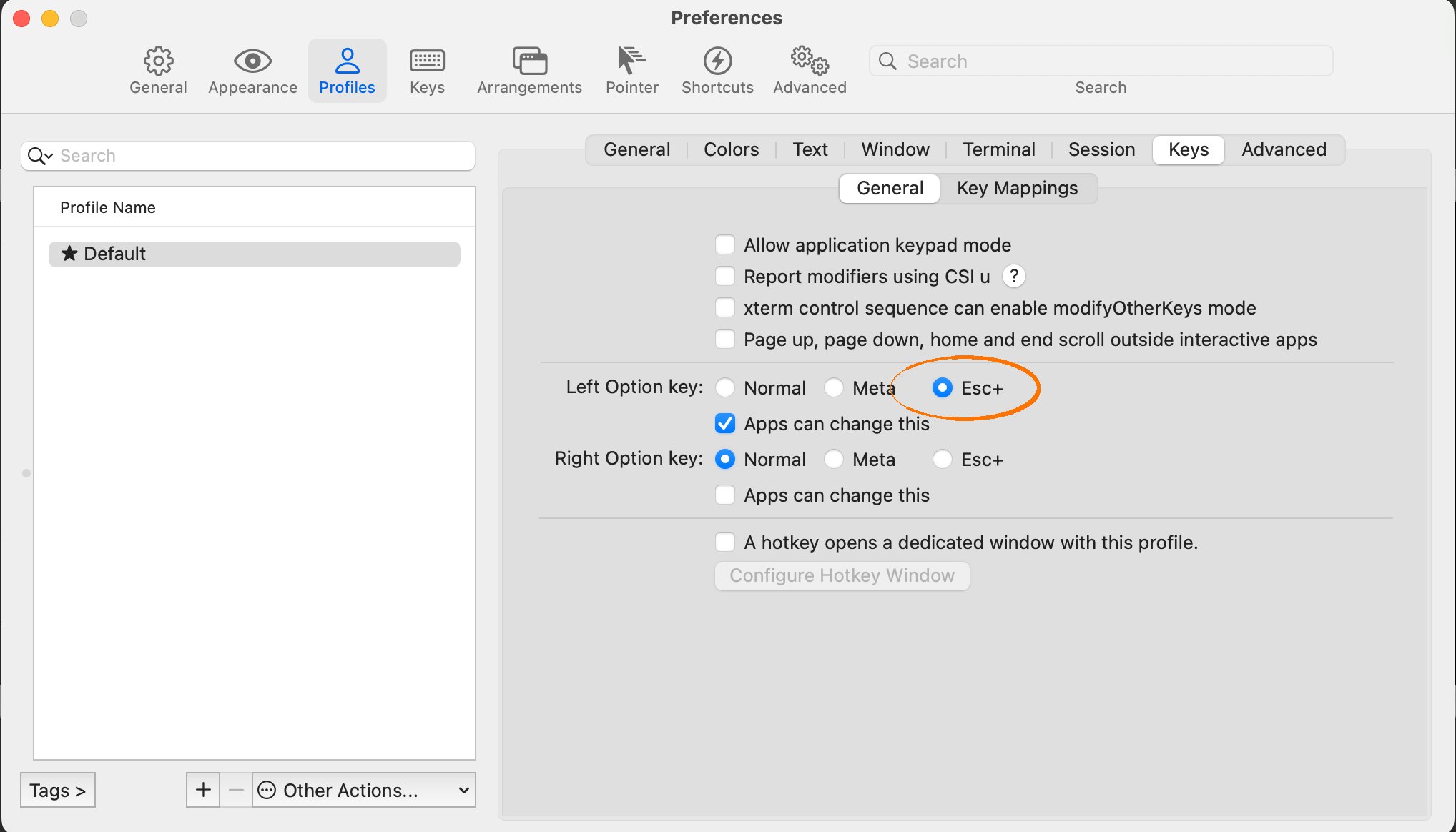
Note: macOS users may need to manually enable Alt-based shortcuts in their terminal configuration. See the section macOS terminal configuration below for details.| Shortcut | Description |
|---|---|
| Tab | Use context-sensitive command completion. |
| Ctrl+C | Clear/cancel the input. |
| Ctrl+M, Enter | New line/enter. |
| Ctrl+O | Force a new line on the current statement, even if the statement has a semicolon. |
| Ctrl+F, Right arrow | Forward one character. |
| Ctrl+B, Left arrow | Backward one character. |
| Alt+F, Ctrl+Right arrow | Forward one word. |
| Alt+B, Ctrl+Left arrow | Backward one word. |
| Ctrl+L | Refresh the display. |
| Delete | Delete the next character. |
| Ctrl+H, Backspace | Delete the previous character. |
| Ctrl+D | Delete the next character, or terminate the input if the input is currently empty. |
| Alt+D, Alt+Delete | Delete next word. |
| Ctrl+W, Alt+Backspace | Delete previous word. |
| Ctrl+E, End | End of line. |
| Alt+>, Ctrl+End | Move cursor to the end of a multi-line statement. |
| Ctrl+A, Home | Move cursor to the beginning of the current line. |
| Alt+<, Ctrl+Home | Move cursor to the beginning of a multi-line statement. |
| Ctrl+T | Transpose current and next characters. |
| Ctrl+K | Delete from cursor position until end of line. |
| Ctrl+U | Delete from beginning of line to cursor position. |
| Alt+Q | Reflow/reformat the current line. |
| Alt+Shift+Q, Alt+` | Reflow/reformat the entire input. |
| Alt+L | Convert the current word to lowercase. |
| Alt+U | Convert the current word to uppercase. |
| Alt+. | Toggle the visibility of the prompt. |
| Alt+2, Alt+F2 | Invoke external editor on current input. |
| Alt+P, Up arrow | Recall previous history entry. |
| Alt+N, Down arrow | Recall next history entry. |
| Ctrl+R | Start searching through input history. |
| Shortcut | Description |
|---|---|
| Ctrl+C, Ctrl+G | Cancel the search, return to normal mode. |
| Ctrl+R | Recall next entry matching current search pattern. |
| Enter | Accept the current recalled entry. |
| Backspace | Delete previous character in search pattern. |
| Other | Add character to search pattern. |
Tab completion
The SQL client offers context-sensitive tab completion when entering commands. Use the Tab key on your keyboard when entering a command to initiate the command completion interface. You can then navigate to database objects, keywords, and functions using the arrow keys. Press the Tab key again to select the object, function, or keyword from the command completion interface and return to the console.macOS terminal configuration
In Apple Terminal:- Navigate to “Preferences”, then “Profiles”, then “Keyboard”.
- Enable the checkbox “Use Option as Meta Key”.
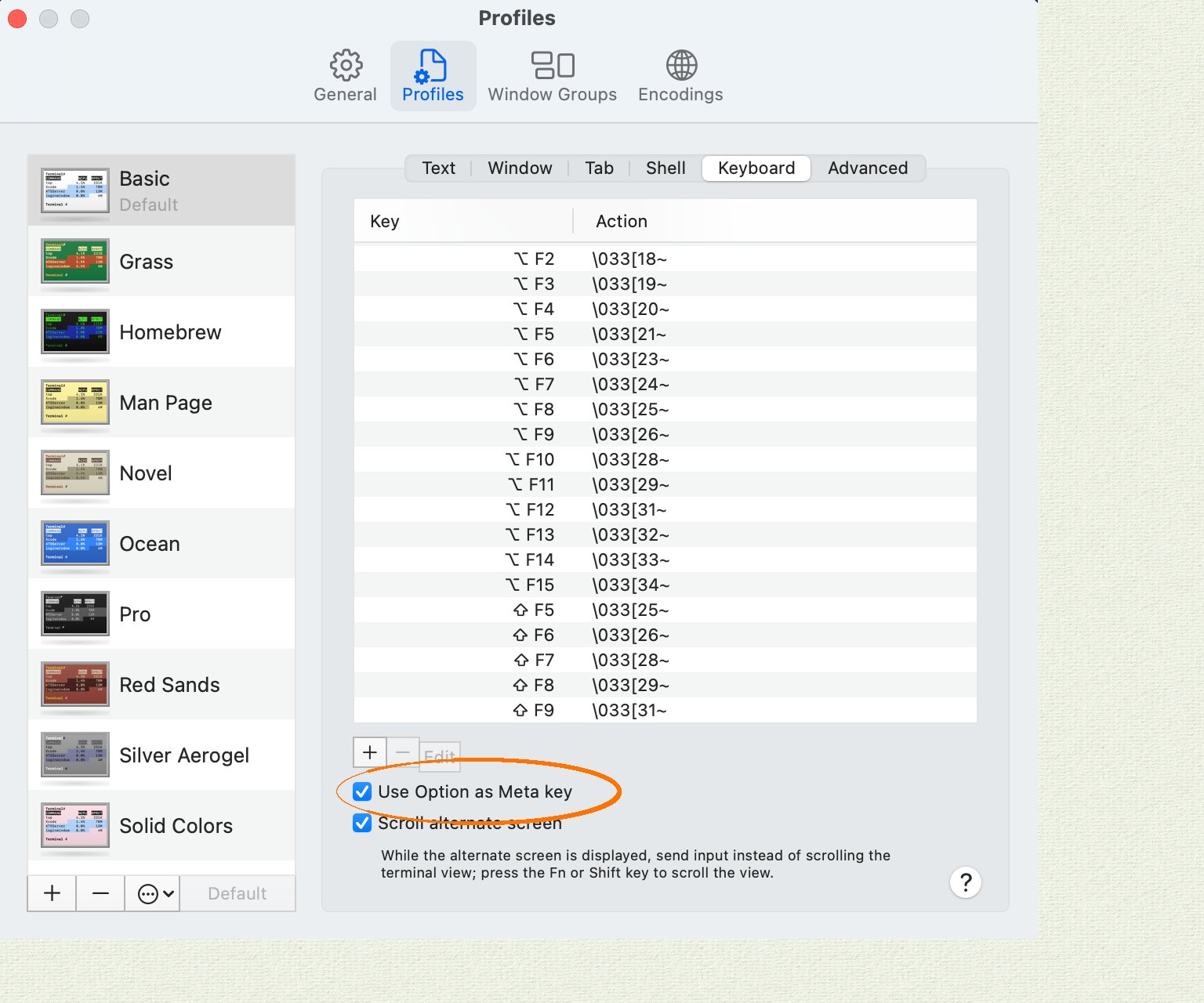
- Navigate to “Preferences”, then “Profiles”, then “Keys”.
- Select the radio button “Esc+” for the behavior of the Left Option Key.
Diagnostics reporting
By default,cockroach demo shares anonymous usage details with Cockroach Labs. To opt out, set the to false. You can also opt out by setting the environment variable to false before running cockroach demo.
Examples
In these examples, we demonstrate how to start a shell withcockroach demo. For more SQL shell features, see the .
Start a single-node demo cluster
cockroach demo loads the movr dataset in to the demo cluster:
Start a multi-node demo cluster
Load a sample dataset into a demo cluster
By default,cockroach demo loads the movr dataset in to the demo cluster. To pre-load any of the other available datasets using cockroach demo <dataset>. For example, to load the ycsb dataset:
Run load against a demo cluster
movr database preloaded and then inserts rows into each table in the movr database. You can monitor the workload progress on the .
When running a multi-node demo cluster, load is balanced across all nodes.
Execute SQL from the command-line against a demo cluster
Connect an additional SQL client to the demo cluster
In addition to the interactive SQL shell that opens when you runcockroach demo, you can use the connection parameters in the welcome text to connect additional SQL clients to the cluster.
-
Use
\demo lsto list the connection parameters for each node in the demo cluster: -
Open a new terminal and run with the
--urlflag set to thesqlconnection URL of the node to which you want to connect:You can also use this URL to connect an application to the demo cluster as thedemouser.
Start a multi-region demo cluster
movr database preloaded and region and zone localities set at the cluster level.
The
--global flag is an experimental feature of cockroach demo. The interface and output are subject to change.Add, shut down, and restart nodes in a multi-node demo cluster
In a multi-node demo cluster, you can use\demo shell commands to add, shut down, restart, decommission, and recommission individual nodes.
This feature is in and subject to change. To share feedback and/or issues, contact Support.
cockroach demo does not support the \demo add and \demo shutdown commands in demo clusters started with the --global flag.Try your own scenario
In addition to using one of the pre-loaded dataset, you can create your own database (e.g., ), or use the emptydefaultdb database (e.g., ) to test our your own scenario involving any CockroachDB SQL features you are interested in.