

cockroach-sql command is a client for executing SQL statements from an interactive shell or directly from the command line. To use this client, run cockroach-sql as described below.
cockroach-sql is functionally equivalent to the .cockroach-sql when used non-interactively is part of a stable interface, and can be used programmatically, with the exception of informational output lines that begin with the hash symbol (#). Informational output can change from release to release, and should not be used programmatically.
Install cockroach-sql
- Mac
- Linux
- Windows
- Visit and download the SQL Shell binary for CockroachDB.
-
Follow the instructions to on your local system. The resulting
cockroachbinary supports onlycockroach sqlsubcommands.
Before you begin
- The logging in must be
LOGINorSQLLOGIN, which are granted by default. If the user has been set to use theNOLOGINrole or theNOSQLLOGIN(or the legacyNOSQLLOGINrole option), the user cannot log in using the SQL CLI with any authentication method. - macOS users only: By default, macOS-based terminals do not enable handling of the Alt key modifier. This prevents access to many keyboard shortcuts in the unix shell and
cockroach sql. See the section macOS terminal configuration below for details.
Synopsis
Start the interactive SQL shell:Flags
Thesql command supports the following types of flags:
General
- To start an interactive SQL shell, run
cockroach-sqlwith all appropriate connection flags or use just the--urlflag, which includes . - To execute SQL statements from the command line, use the
--executeflag.
| Flag | Description |
|---|---|
--database-d | A database name to use as in the newly created session. |
--embedded | Minimizes the SQL shell welcome text to be appropriate for embedding in playground-type environments. Specifically, this flag removes details that users in an embedded environment have no control over (e.g., networking information). |
--echo-sql | Reveal the SQL statements sent implicitly by the command-line utility. For a demonstration, see the example below. This can also be enabled within the interactive SQL shell via the \set echo shell command. |
--execute-e | Execute SQL statements directly from the command line, without opening a shell. This flag can be set multiple times, and each instance can contain one or more statements separated by semi-colons. If an error occurs in any statement, the command exits with a non-zero status code and further statements are not executed. The results of each statement are printed to the standard output (see --format for formatting options).For a demonstration of this and other ways to execute SQL from the command line, see the example below. |
--file <filename>-f <filename> | Read SQL statements from <filename. |
--format | How to display table rows printed to the standard output. Possible values: tsv, csv, table, raw, records, sql, html.Default: table for sessions that output on a terminal; tsv otherwiseThis flag corresponds to the display_format client-side option. |
--read-only | Sets the default_transaction_read_only to on upon connecting. |
--safe-updates | Disallow potentially unsafe SQL statements, including DELETE without a WHERE clause, UPDATE without a WHERE clause, and ALTER TABLE ... DROP COLUMN.Default: true for interactive sessions; false otherwisePotentially unsafe SQL statements can also be allowed/disallowed for an entire session via the sql_safe_updates . |
--set | Set a client-side option before starting the SQL shell or executing SQL statements from the command line via --execute. This flag may be specified multiple times, once per option.After starting the SQL shell, the \set and unset commands can be use to enable and disable client-side options as well. |
--watch | Repeat the SQL statements specified with --execute or -e until a SQL error occurs or the process is terminated. --watch applies to all --execute or -e flags in use.You must also specify an interval at which to repeat the statement, followed by a time unit. For example, to specify an interval of 5 seconds, use 5s.Note that this flag is intended for simple monitoring scenarios during development and testing. See the example below. |
Client connection
Logging
By default, this command logs messages tostderr. This includes events with WARNING and higher.
If you need to troubleshoot this command’s behavior, you can .
Session and output types
cockroach-sql exhibits different behaviors depending on whether or not the session is interactive and/or whether or not the session outputs on a terminal.
- A session is interactive when
cockroach-sqlis invoked without the-eor-fflag, and the input is a terminal. In such cases:- The
errexitoption defaults tofalse. - The
check_syntaxoption defaults totrueif supported by the CockroachDB server (this is checked when the shell starts up). - Ctrl+C at the prompt will only terminate the shell if no other input was entered on the same line already.
- The shell will attempt to set the
safe_updatestotrueon the server. - The shell continues to read input after the last command entered.
- The
- A session outputs on a terminal when output is not redirected to a file. In such cases:
- The
--formatflag and its correspondingdisplay_formatoption default totable. These default totsvotherwise. - The
show_timesoption defaults totrue.
- The
cockroach-sql also activates the interactive prompt with a line editor that can be used to modify the current line of input. Also, command history becomes active.
SQL shell
Welcome message
When the SQL shell connects (or reconnects) to a CockroachDB node, it prints a welcome text with some tips and CockroachDB version and cluster details:- When the client and server versions of CockroachDB are the same, the shell prints the
Server versionfollowed by(same version as client). - When the client and server versions are different, the shell prints both the
Client versionandServer version. In this case, you may want to of earlier client or server versions. - Since every CockroachDB cluster has a unique ID, you can use the
Cluster IDfield to verify that your client is always connecting to the correct cluster.
Commands
The following commands can be used within the interactive SQL shell:| Command | Usage |
|---|---|
\?,help | View this help within the shell. |
\q,quit,exit,ctrl-d | Exit the shell. When no text follows the prompt, ctrl-c exits the shell as well; otherwise, ctrl-c clears the line. |
\! | Run an external command and print its results to stdout. . |
| | Run the output of an external command as SQL statements. . |
\set <option>,\unset <option> | Enable or disable a client-side option. For more details, see Client-side options. You can also use the --set flag to enable or disable client-side options before starting the SQL shell. |
\p,\show | During a multi-line statement or transaction, show the SQL that has been entered but not yet executed.\show was deprecated as of v21.1. Use \p instead. |
\h <statement>,\hf <function> | View help for specific SQL statements or functions. See SQL shell help for more details. |
\c <option>,\connect <option> | Display or change the current . Using \c without an argument lists the current connection parameters. To reuse the existing connection and change the current database, use \c <dbname>. This is equivalent to SET <database> and USE <database>. To connect to a cluster using individual connection parameters, use \c <dbname> <user> <host> <port>. Use the dash character (-) to omit one parameter. To reconnect to the cluster using the current connection parameters enter \c -. When using individual connection parameters, the TLS settings from the original connection are reused. To use different TLS settings, connect using a connection URL. To connect to a cluster using a use \c <url> |
\l | List all databases in the CockroachDB cluster. This command is equivalent to . |
\d[S+] [<pattern] | Show details about the relations in the current database. By default this command will show all the user tables, indexes, views, materialized views, and sequences in the current database. Add the S modifier to also show all system objects. If you specify a relation or a pattern, it will show the details of matching relations. Add the + modifier to show additional information. |
\dC[+] [<pattern] | Show the type casts. If you specify a type or a pattern, it will show the details of matching types. Add the + modifier to show additional information. |
\dd[S] [<pattern] | Show the objects of type constraint in the current database. Add the S modifier to also show all system objects. If you specify a type or a pattern, it will show the details of matching objects. |
\df[S+] [<pattern] | Show the of the current database. Add the S modifier to also show all . If you specify a function name or a pattern, it will show the details of matching function. Add the + modifier to show additional information. |
\dg[S+] [<pattern] | Show the of the current database. Add the S modifier to also show all system objects. If you specify a role name or a pattern, it will show the details of matching roles. Add the + modifier to show additional information. |
\di[S+] [<pattern] | Show the indexes of the current database. Add the S modifier to also show all system objects. If you specify an index name or a pattern, it will show the details of matching indexes. Add the + modifier to show additional information. |
\dm[S+] [<pattern] | Show the materialized views of the current database. Add the S modifier to also show all system objects. If you specify a materialized view name or a pattern, it will show the details of matching materialized views. Add the + modifier to show additional information. |
\dn[S+] [<pattern] | List all in the current database. Add the S modifier to also show all system schemas. Add the + modifier to show the permissions of each schema. Specify a pattern to limit the output to schemas that match the pattern. These commands are equivalent to . |
\ds[S+] [<pattern] | Show the sequences of the current database. Add the S modifier to also show all system objects. If you specify a sequence name or a pattern, it will show the details of matching sequences. Add the + modifier to show additional information. |
\dt[S+] [<pattern] | Show the tables of the current database. Add the S modifier to also show all system objects. If you specify a table name or a pattern, it will show the details of matching tables. Add the + modifier to show additional information. |
\dT[S+] [<pattern] | Show the in the current database. Add the S modifier to also show all system objects. If you specify a type name or a pattern, it will show the details of matching types. Add the + modifier to show additional information. |
\du[S+] [<pattern] | Show the of the current database. Add the S modifier to also show all system objects. If you specify a role name or a pattern, it will show the details of matching roles. Add the + modifier to show additional information. |
\dv[S+] [<pattern] | Show the views of the current database. Add the S modifier to also show all system objects. If you specify a view name or a pattern, it will show the details of matching views. Add the + modifier to show additional information. |
\r | Resets the query input buffer, clearing all SQL statements that have been entered but not yet executed. |
\statement-diag list | List available . |
\statement-diag download <bundle-id> [<filename] | Download diagnostic bundle. |
\i <filename> | Reads and executes input from the file <filename, in the current working directory. |
\ir <filename> | Reads and executes input from the file <filename.When invoked in the interactive shell, \i and \ir behave identically (i.e., CockroachDB looks for <filename in the current working directory). When invoked from a script, CockroachDB looks for <filename relative to the directory in which the script is located. |
\echo <arguments> | Evaluate the <arguments and print the results to the standard output. |
\x <boolean> | When true/on/yes/1, to records. When false/off/no/0, sets the session’s format to the default (table/tsv). |
Patterns
Commands use the SQL for string pattern matching, not POSIX regular expressions. For example to list all schemas that begin with the letter “p” you’d use the following pattern:Client-side options
- To view option descriptions and how they are currently set, use
\setwithout any options. - To enable or disable an option, use
\set <option> <value>or\unset <option> <value>. You can also use the form<option=<value. - If an option accepts a boolean value:
\set <option>without<valueis equivalent to\set <option> true, and\unset <option>without<valueis equivalent to\set <option> false.on,yes, and1are aliases fortrue, andoff,no, and0are aliases forfalse.
| Client Options | Description |
|---|---|
auto_trace | For every statement executed, the shell also produces the trace for that statement in a separate result below. A trace is also produced in case the statement produces a SQL error. Default: offTo enable this option, run \set auto_trace on. |
border | Display a border around the output of the SQL statement when using the table display format. Set the level of borders using border=<level to configure how many borders and lines are in the output, where <level is an integer between 0 and 3. The higher the integer, the more borders and lines are in the output. A level of 0 shows the output with no outer lines and no row line separators. A level of 1 adds row line separators. A level of 2 adds an outside border and no row line separators. A level of 3 adds both an outside border and row line separators. Default: 0 To change this option, run \set border=<level. . |
check_syntax | Validate SQL syntax. This ensures that a typo or mistake during user entry does not inconveniently abort an ongoing transaction previously started from the interactive shell. Default: true for ; false otherwise.To disable this option, run \unset check_syntax. |
display_format | How to display table rows printed within the interactive SQL shell. Possible values: tsv, csv, table, raw, records, sql, html.Default: table for sessions that ; tsv otherwiseTo change this option, run \set display_format <format>. . |
echo | Reveal the SQL statements sent implicitly by the SQL shell. Default: falseTo enable this option, run \set echo. . |
errexit | Exit the SQL shell upon encountering an error. Default: false for ; true otherwiseTo enable this option, run \set errexit. |
prompt1 | Customize the interactive prompt within the SQL shell. See Customizing the prompt for information on the available prompt variables. |
show_times | Reveal the time a query takes to complete. Possible values: |
executiontime refers to the time taken by the SQL execution engine to execute the query.networktime refers to the network latency between the server and the SQL client command.othertime refers to all other forms of latency affecting the total query completion time, including query planning.
trueTo disable this option, run
\unset show_times.
Customizing the prompt
The\set prompt1 option allows you to customize the interactive prompt in the SQL shell. Use the following prompt variables to set a custom prompt.
| Prompt variable | Description |
|---|---|
%> | The port of the node you are connected to. |
%/ | The current database name. |
%M | The fully qualified host name and port of the node. |
%m | The fully qualified host name of the node. |
%n | The username of the connected SQL user. |
%x | The transaction status of the current statement. |
Help
Within the SQL shell, you can get interactive help about statements and functions:| Command | Usage |
|---|---|
\h?? | List all available SQL statements, by category. |
\hf | List all available SQL functions, in alphabetical order. |
\h <statement><statement ? | View help for a specific SQL statement. |
\hf <function><function ? | View help for a specific SQL function. |
Examples
Shortcuts
Note: macOS users may need to manually enable Alt-based shortcuts in their terminal configuration. See the section macOS terminal configuration below for details.| Shortcut | Description |
|---|---|
| Tab | Use context-sensitive command completion. |
| Ctrl+C | Clear/cancel the input. |
| Ctrl+M, Enter | New line/enter. |
| Ctrl+O | Force a new line on the current statement, even if the statement has a semicolon. |
| Ctrl+F, Right arrow | Forward one character. |
| Ctrl+B, Left arrow | Backward one character. |
| Alt+F, Ctrl+Right arrow | Forward one word. |
| Alt+B, Ctrl+Left arrow | Backward one word. |
| Ctrl+L | Refresh the display. |
| Delete | Delete the next character. |
| Ctrl+H, Backspace | Delete the previous character. |
| Ctrl+D | Delete the next character, or terminate the input if the input is currently empty. |
| Alt+D, Alt+Delete | Delete next word. |
| Ctrl+W, Alt+Backspace | Delete previous word. |
| Ctrl+E, End | End of line. |
| Alt+>, Ctrl+End | Move cursor to the end of a multi-line statement. |
| Ctrl+A, Home | Move cursor to the beginning of the current line. |
| Alt+<, Ctrl+Home | Move cursor to the beginning of a multi-line statement. |
| Ctrl+T | Transpose current and next characters. |
| Ctrl+K | Delete from cursor position until end of line. |
| Ctrl+U | Delete from beginning of line to cursor position. |
| Alt+Q | Reflow/reformat the current line. |
| Alt+Shift+Q, Alt+` | Reflow/reformat the entire input. |
| Alt+L | Convert the current word to lowercase. |
| Alt+U | Convert the current word to uppercase. |
| Alt+. | Toggle the visibility of the prompt. |
| Alt+2, Alt+F2 | Invoke external editor on current input. |
| Alt+P, Up arrow | Recall previous history entry. |
| Alt+N, Down arrow | Recall next history entry. |
| Ctrl+R | Start searching through input history. |
| When searching for history entries, the following shortcuts are active: | |
| Shortcut | Description |
| ---------------- | ---------------------------------------------------- |
| Ctrl+C, Ctrl+G | Cancel the search, return to normal mode. |
| Ctrl+R | Recall next entry matching current search pattern. |
| Enter | Accept the current recalled entry. |
| Backspace | Delete previous character in search pattern. |
| Other | Add character to search pattern. |
Tab completion
The SQL client offers context-sensitive tab completion when entering commands. Use the **Tab** key on your keyboard when entering a command to initiate the command completion interface. You can then navigate to database objects, keywords, and functions using the arrow keys. Press the **Tab** key again to select the object, function, or keyword from the command completion interface and return to the console.macOS terminal configuration
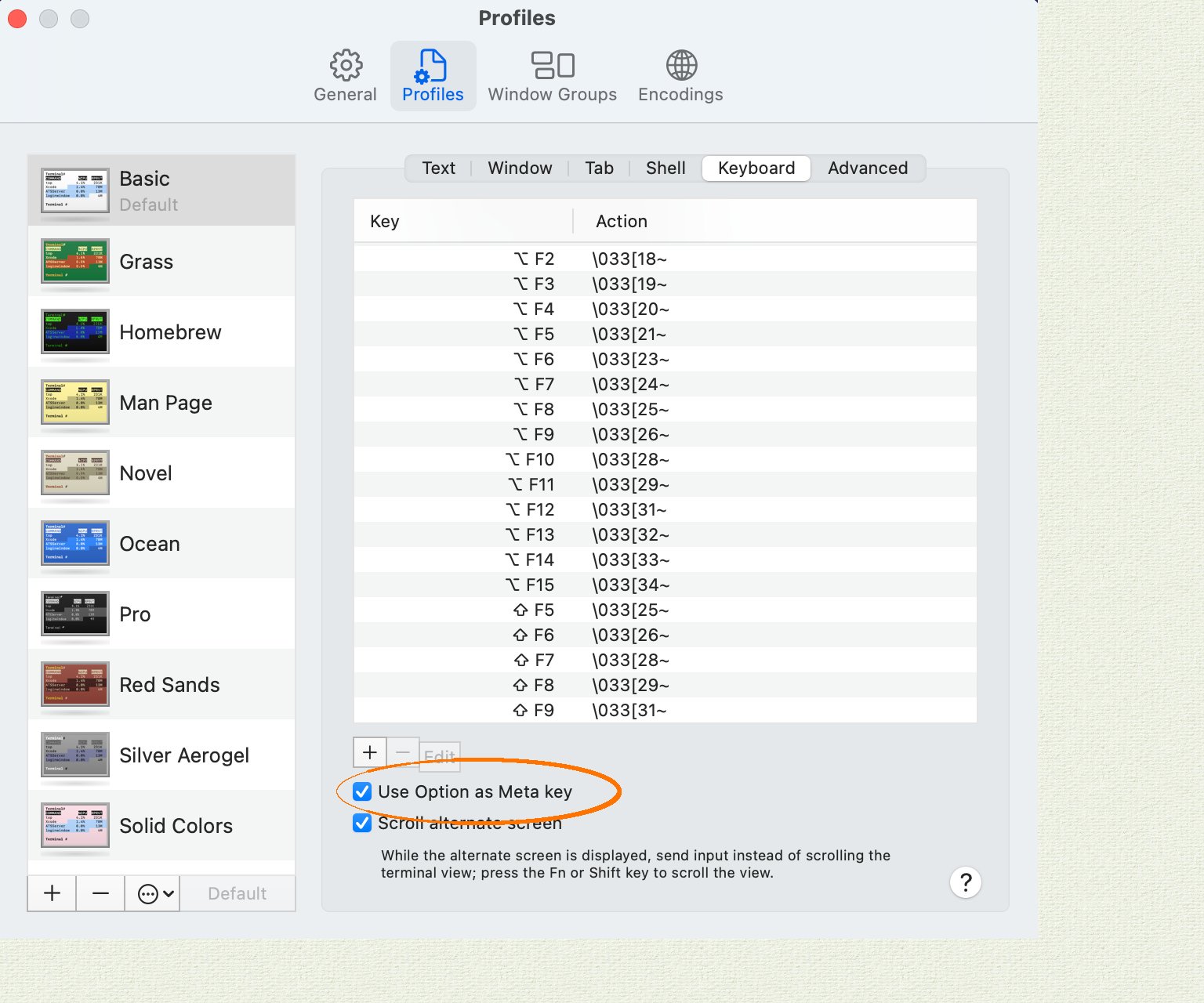
In **Apple Terminal**:- Navigate to “Preferences”, then “Profiles”, then “Keyboard”.
- Enable the checkbox “Use Option as Meta Key”.
In **iTerm2**:
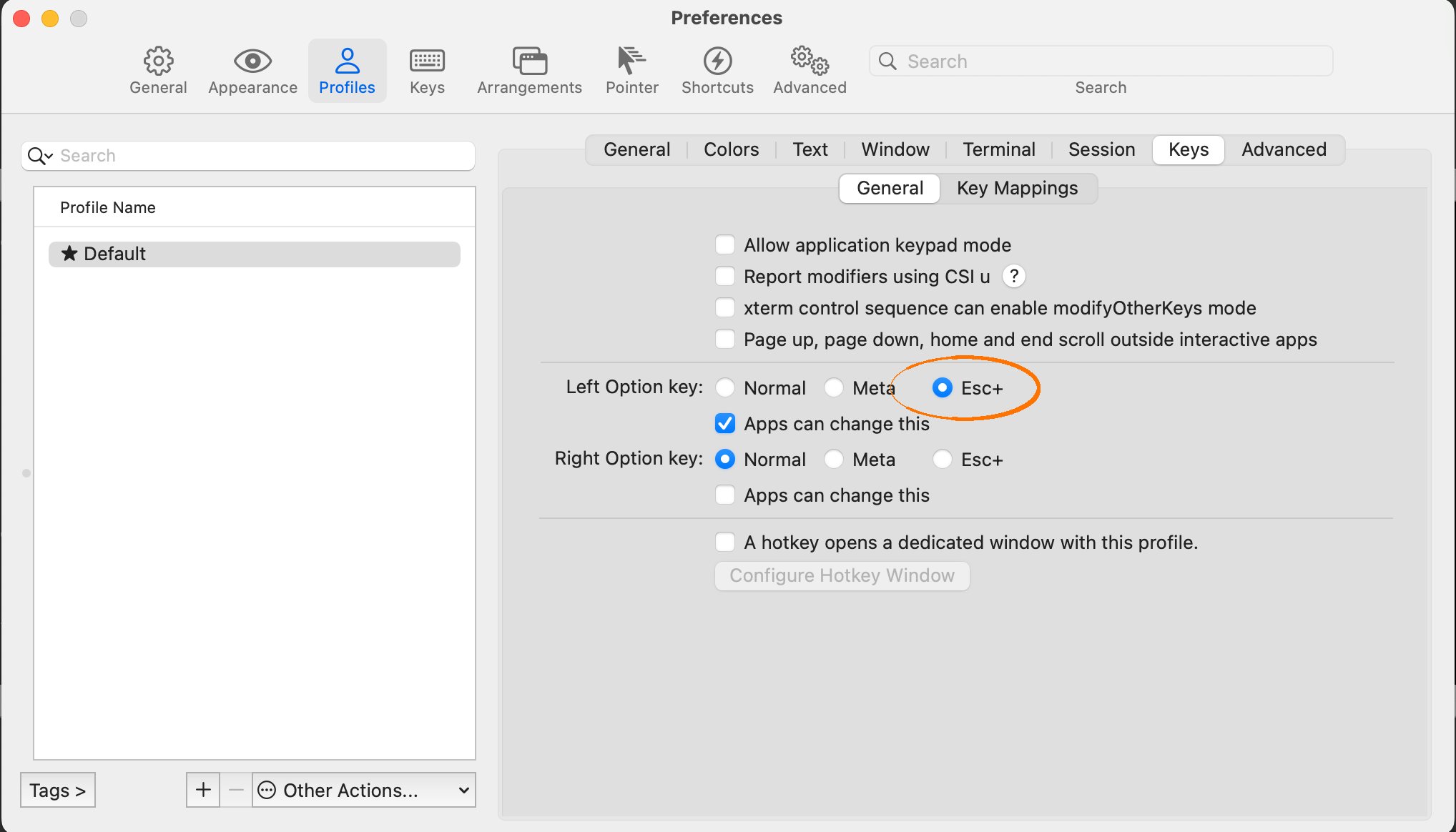
- Navigate to “Preferences”, then “Profiles”, then “Keys”.
- Select the radio button “Esc+” for the behavior of the Left Option Key.
Error messages and SQLSTATE codes
When CockroachDB encounters a SQL error, it returns the following information to the client (whether cockroach-sql or another client application):
- An error message, prefixed with the “Severity” field of the PostgreSQL wire protocol. For example,
ERROR: insert on table "shipments" violates foreign key constraint "fk\_customers". - A 5-digit
SQLSTATEerror code as defined by the SQL standard. For example,SQLSTATE: 23503. For example, the following query (taken from ) results in a SQL error, and returns both an error message and aSQLSTATEcode as described above.
SQLSTATE code in particular can be helpful in the following ways:
- It is a standard SQL error code that you can look up in documentation and search for on the web. For any given error state, CockroachDB tries to produce the same
SQLSTATEcode as PostgreSQL. - If you are developing automation that uses the CockroachDB SQL shell, it is more reliable to check for
SQLSTATEvalues than for error message strings, which are likely to change.
Examples
Start a SQL shell
In these examples, we connect a SQL shell to a **secure cluster**.Execute SQL statement within the SQL shell
This example assumes that we have already started the SQL shell (see examples above).Execute SQL statements from the command line
In these examples, we use the--execute flag to execute statements from the command line:
echo command to execute statements from the command line:
Control how table rows are printed
In these examples, we show tables and special characters printed in various formats. When the standard output is a terminal,--format defaults to table and tables are printed with ASCII art and special characters are not escaped for easy human consumption:
--format to another format (e.g., tsv or html):
--format defaults to tsv:
--format to another format (e.g., table):
Show borders around the statement output within the SQL shell
To display outside and inside borders in the statement output, set theborder SQL shell option to 3.
Make the output of SHOW statements selectable
To make it possible to select from the output of SHOW statements, set --format to raw:
--format is not set to raw, you can use the display_format SQL shell option to change the output format within the interactive session:
Execute SQL statements from a file
In this example, we show and then execute the contents of a file containing SQL statements.Run external commands from the SQL shell
In this example, we use\! to look at the rows in a CSV file before creating a table and then using \| to insert those rows into the table.
\| to programmatically insert values.
Allow potentially unsafe SQL statements
The--safe-updates flag defaults to true. This prevents SQL statements that may have broad, undesired side effects. For example, by default, we cannot use DELETE without a WHERE clause to delete all rows from a table:
--safe-updates=false:
sql_safe_updates .
Reveal the SQL statements sent implicitly by the command-line utility
In this example, we use the--execute flag to execute statements from the command line and the --echo-sql flag to reveal SQL statements sent implicitly:
echo shell option to reveal SQL statements sent implicitly:
Repeat a SQL statement
Repeating SQL queries on a table can be useful for monitoring purposes. With the--watch flag, you can repeat the statements specified with a --execute or -e flag periodically, until a SQL error occurs or the process is terminated.
For example, if you want to monitor the number of queries running on the current node, you can use cockroach-sql with the --watch flag to query the node’s crdb_internal.node_statement_statistics table for the query count:
Connect to a cluster listening for Unix domain socket connections
To connect to a cluster that is running on the same machine as your client and is listening for Unix domain socket connections, with the--url connection parameter.
For example, suppose you start a single-node cluster with the following command:

