

Using CockroachDB as a source database within AWS DMS is unsupported.
Setup
Complete the following items before starting the DMS migration:- Configure a replication instance in AWS.
- Configure a source endpoint in AWS pointing to your source database.
- Ensure you have a secure, publicly available CockroachDB cluster running the latest , and have created a that you can use for your AWS DMS target endpoint.
-
Set the following using :
This prevents a potential issue when migrating especially large tables with millions of rows.
-
Manually create all schema objects in the target CockroachDB cluster. If you are migrating from PostgreSQL, MySQL, Oracle, or Microsoft SQL Server, you can to convert and export your schema.
- All tables must have an explicitly defined primary key. For more guidance, see .
- Drop all per the AWS DMS best practices. You can recreate them after the full load completes. AWS DMS can create a basic schema, but does not create or constraints such as and .
- Ensure that any schema changes are also reflected on your target tables, or add transformation rules to your table mappings. If you make substantial schema changes, the AWS DMS migration can fail.
- If you are migrating to a CockroachDB CockroachDB Cloud cluster and plan to use replication as part of your migration strategy, you must first disable for the migration to succeed.
You will not be able to run a as long as revision history for cluster backups is disabled. Once you verify that the migration succeeded, you should re-enable revision history.
- If the output of shows any backup schedules, run for each backup schedule.
-
If the output of
SHOW SCHEDULESdoes not show backup schedules, contact Support to disable revision history for cluster backups. - If you are migrating to CockroachDB Standard or Advanced, enable before starting the DMS migration. This makes CockroachDB logs accessible for troubleshooting. You will also need to select Enable CloudWatch logs in your DMS task settings.
Supported database technologies
As of publishing, AWS DMS supports migrations from these relational databases (for the most accurate view of what is currently supported, see Sources for AWS DMS):- Amazon Aurora
- Amazon DocumentDB (with MongoDB compatibility)
- Amazon S3
- IBM Db2 (LUW edition only)
- MariaDB
- Microsoft Azure SQL
- Microsoft SQL Server
- MongoDB
- MySQL
- Oracle
- PostgreSQL
- SAP ASE
Best practices
- Do not issue reads while AWS DMS is running. AWS DMS runs explicit transactions, which can cause . If you need to issue reads, use .
- Do not run additional workloads (e.g., benchmarking) while AWS DMS is running.
- If you perform a full load, you can improve performance by defining a parallel load setting for selected columns. See Table Mappings.
Step 1. Create a target endpoint pointing to CockroachDB
- In the AWS Console, open AWS DMS.
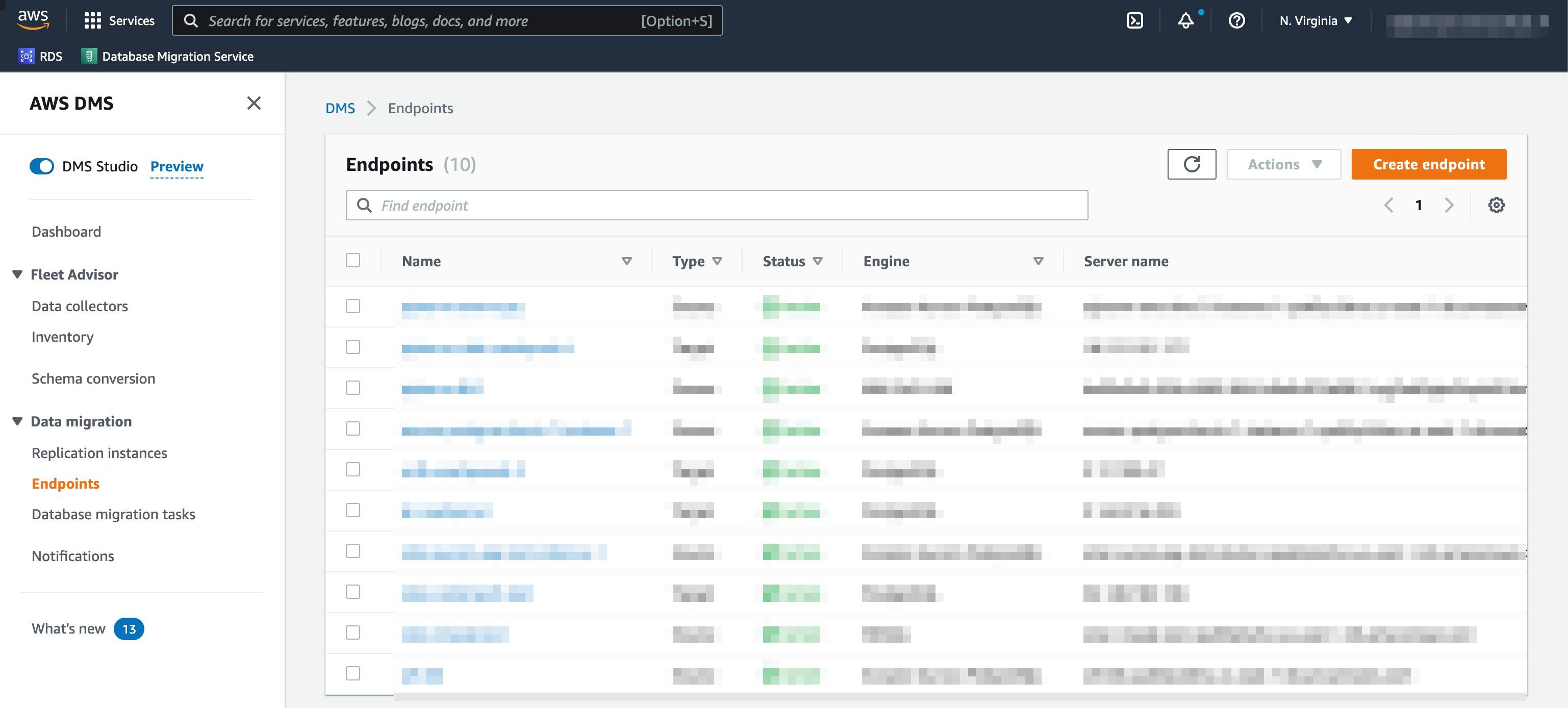
- Open Endpoints in the sidebar. A list of endpoints will display, if any exist.
-
In the top-right portion of the window, select Create endpoint.
- In the Endpoint type section, select Target endpoint.
- Supply an Endpoint identifier to identify the new target endpoint.
- In the Target engine dropdown, select PostgreSQL.
- Under Access to endpoint database, select Provide access information manually. For information about where to find CockroachDB connection parameters, see .
- Enter the Server name and Port of your CockroachDB cluster.
- Supply a User name, Password, and Database name from your CockroachDB cluster.
To connect to a CockroachDB Standard or Basic cluster, set the Database name to
{host}.{database}. For details on how to find these parameters, see . Also set Secure Socket Layer (SSL) mode to require.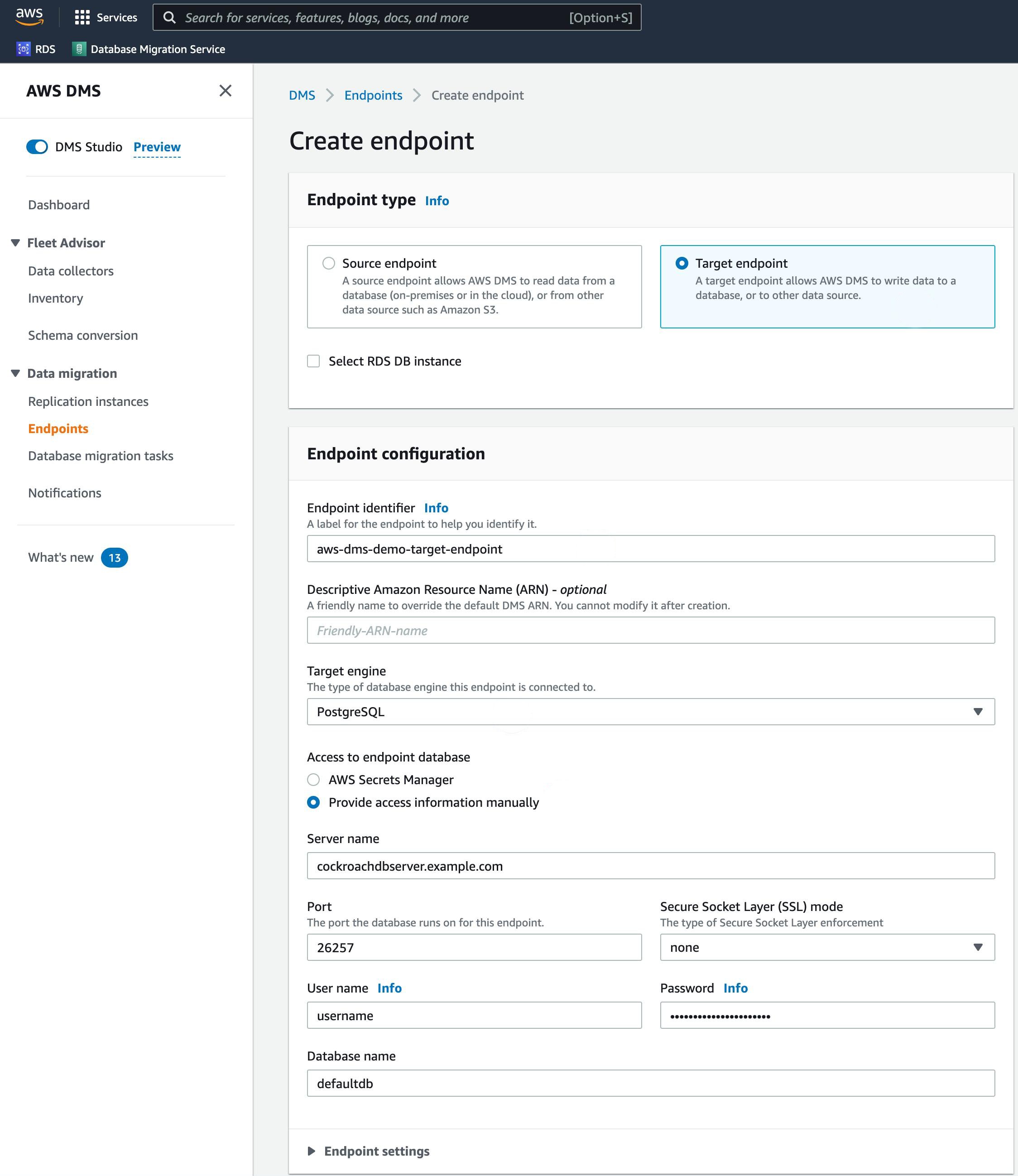
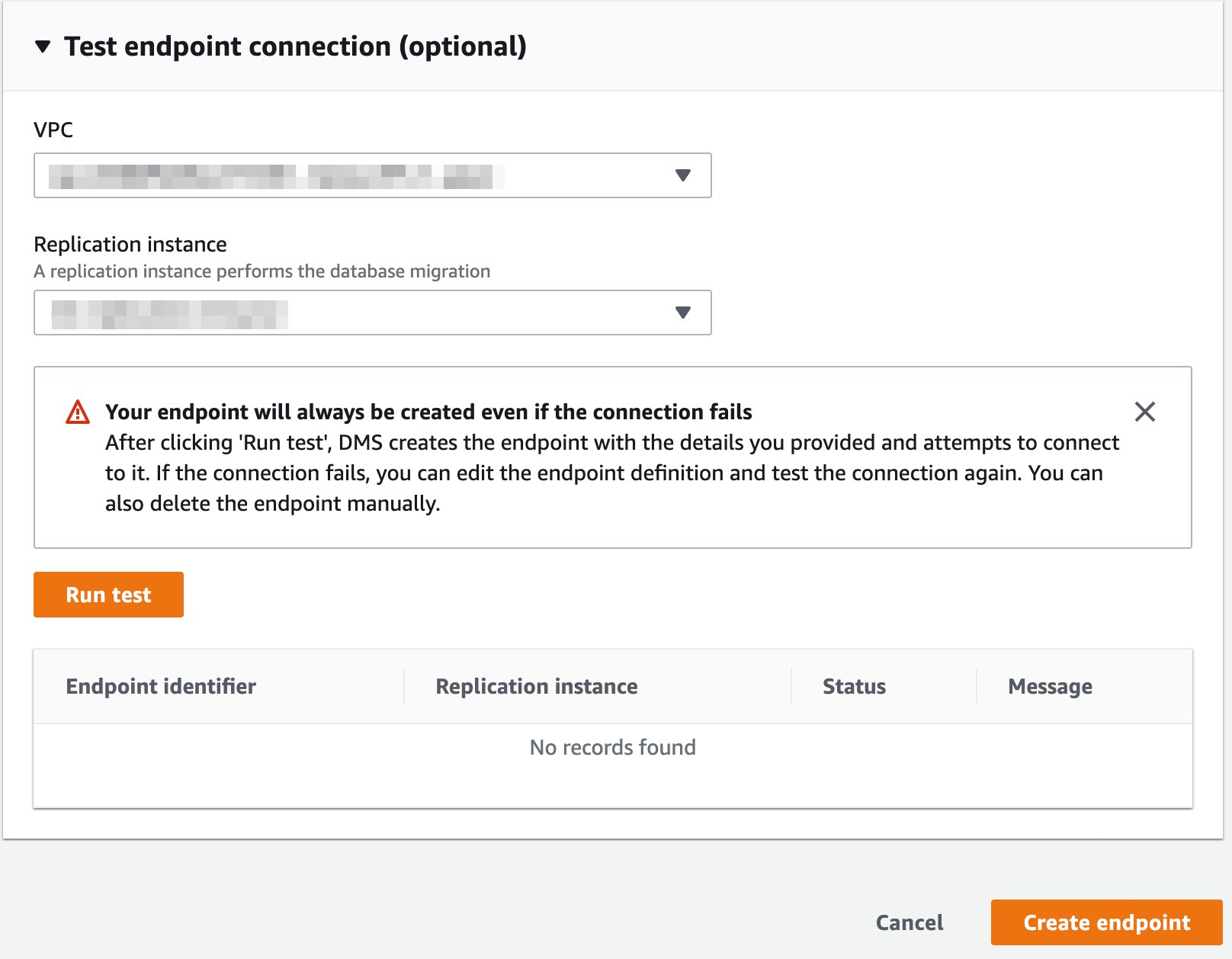
- If needed, you can test the connection under Test endpoint connection (optional).
- To create the endpoint, select Create endpoint.
Step 2. Create a database migration task
A database migration task, also known as a replication task, controls what data are moved from the source database to the target database. To conserve CPU, consider migrating tables in multiple replication tasks, rather than performing a full load in a single task.Step 2.1. Task configuration
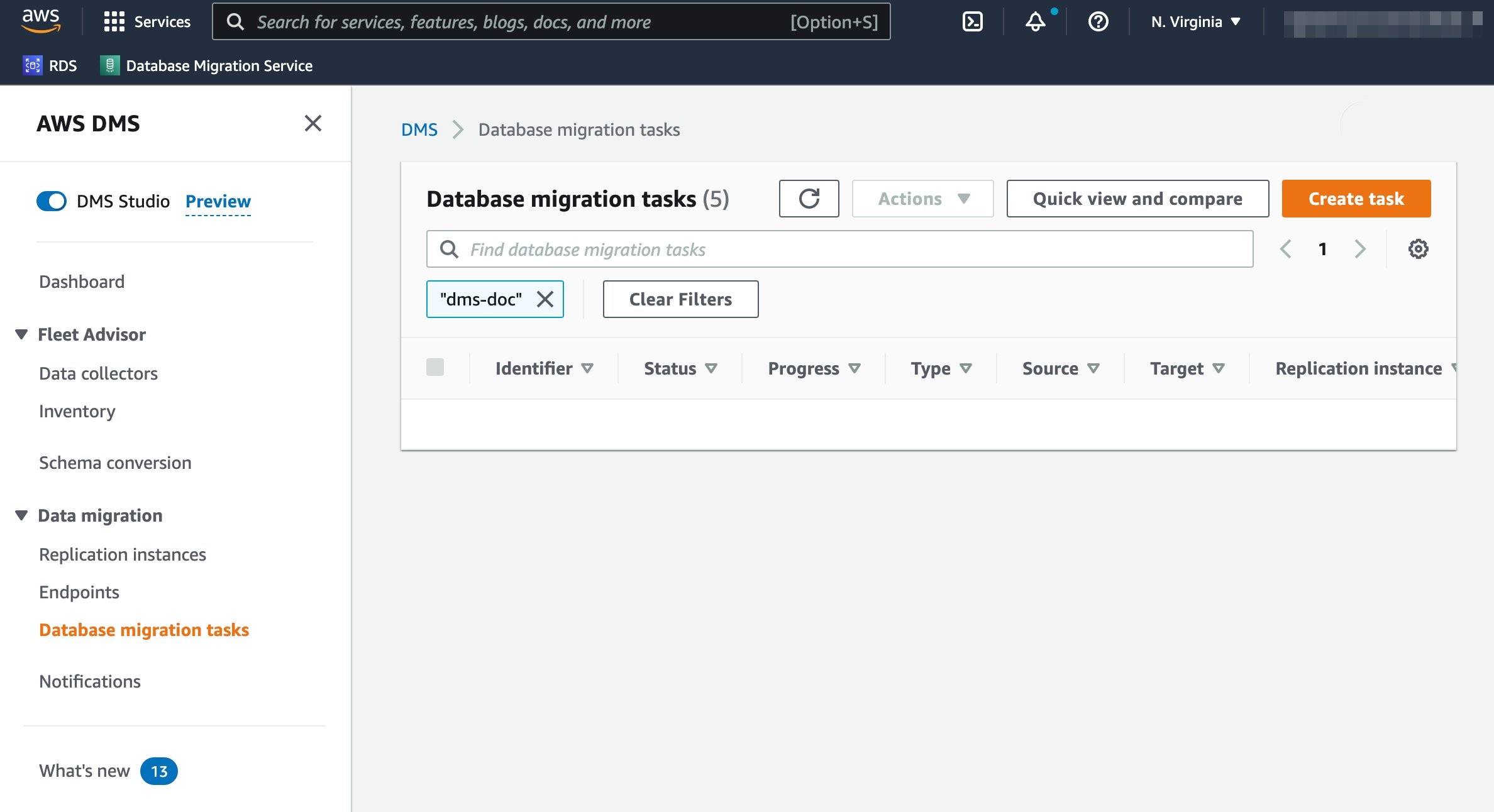
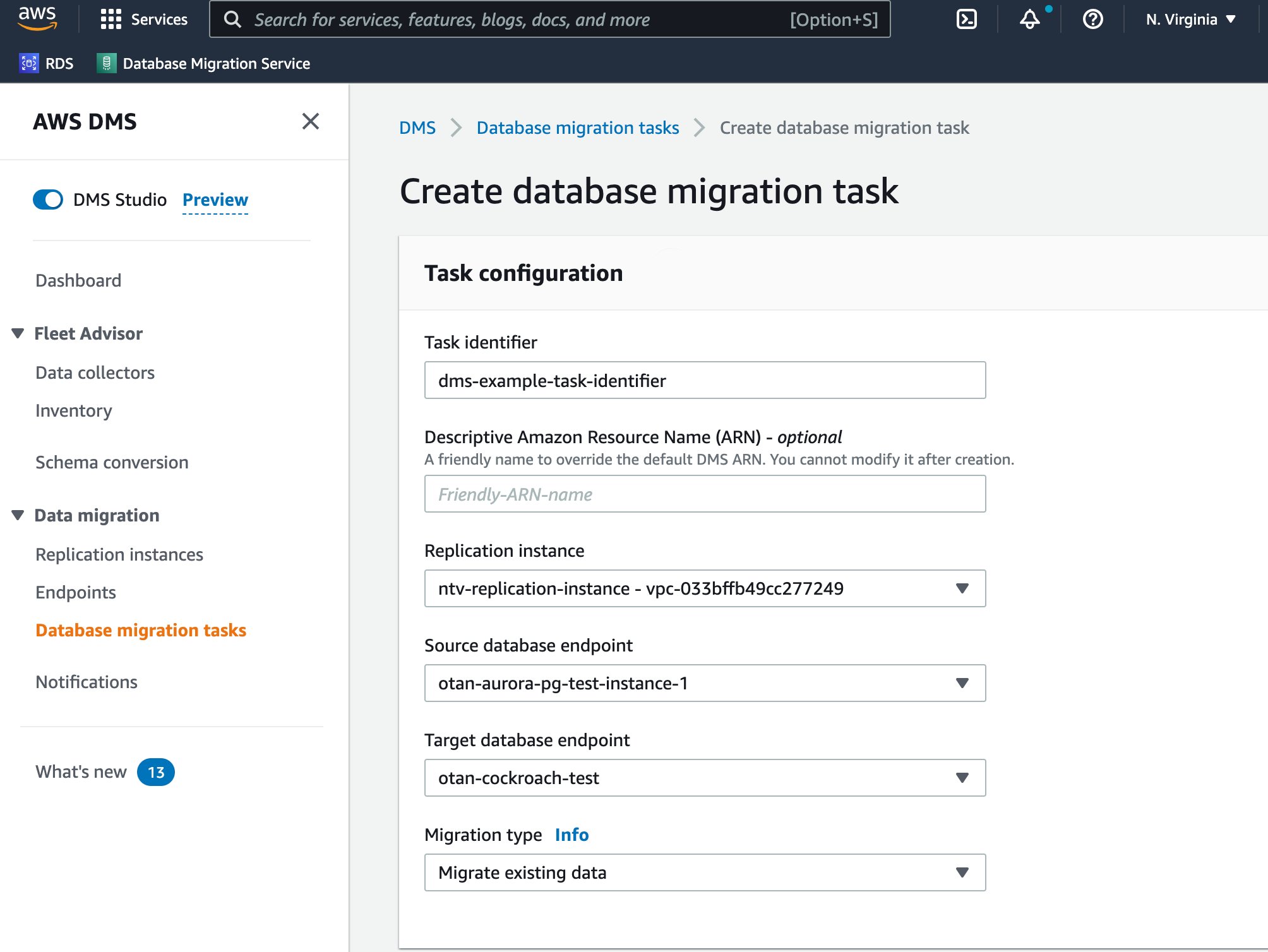
- While in AWS DMS, select Database migration tasks in the sidebar. A list of database migration tasks will display, if any exist.
-
In the top-right portion of the window, select Create task.
- Supply a Task identifier to identify the replication task.
- Select the Replication instance and Source database endpoint you created prior to starting this tutorial.
- For the Target database endpoint dropdown, select the CockroachDB endpoint created in the previous section.
- Select the appropriate Migration type based on your needs.
If you choose Migrate existing data and replicate ongoing changes or Replicate data changes only, you must first disable revision history for backups.
Step 2.2. Task settings
- For the Editing mode radio button, keep Wizard selected.
- To preserve the schema you manually created, select Truncate or Do nothing for the Target table preparation mode.
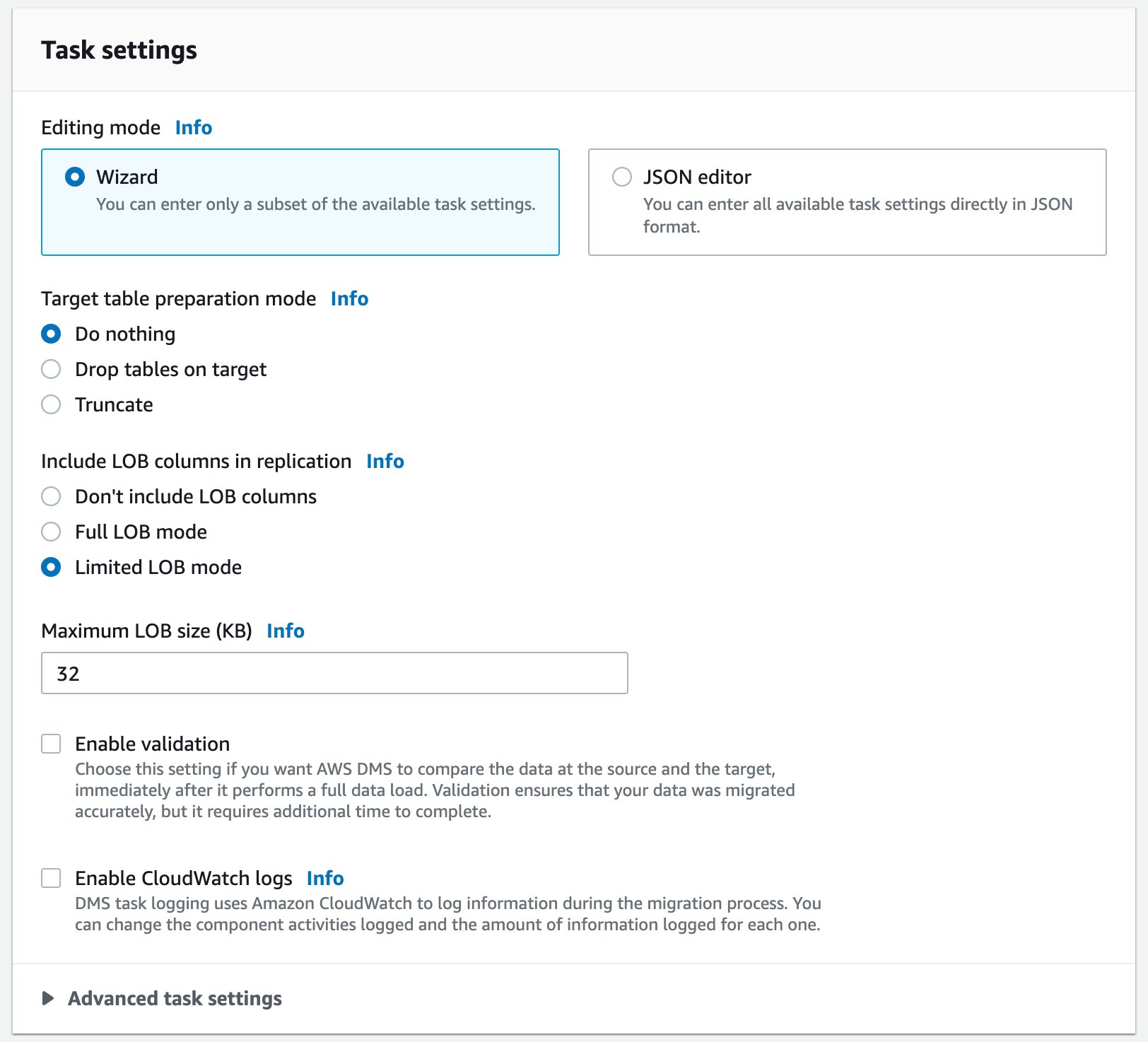
- Optionally check Enable validation to compare the data in the source and target rows, and verify that the migration succeeded. You can view the results in the Table statistics for your migration task. For more information about data validation, see the AWS documentation.
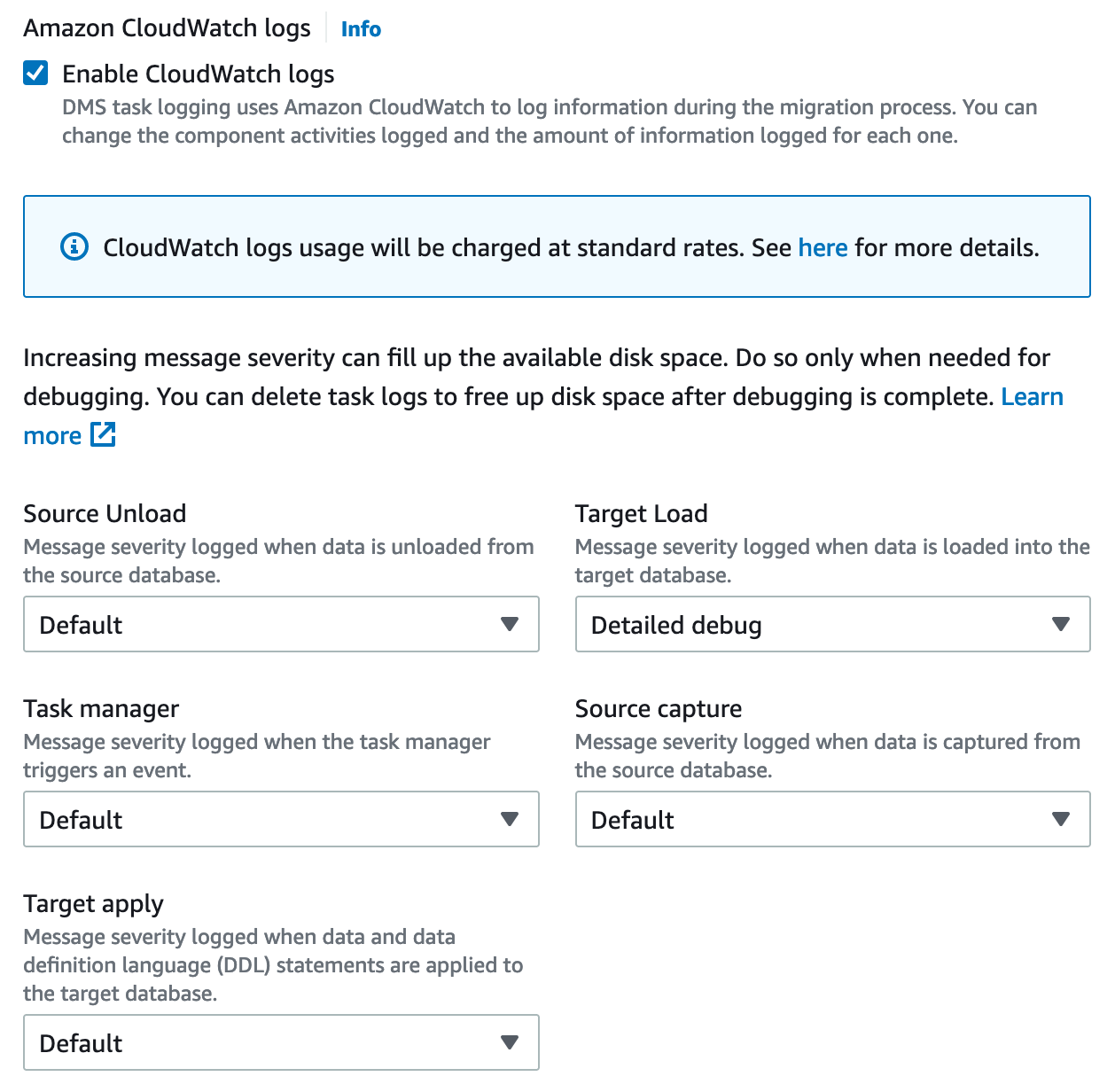
- Check the Enable CloudWatch logs option. We highly recommend this for troubleshooting potential migration issues.
- For the Target Load, select Detailed debug.
Step 2.3. Table mappings
When specifying a range of tables to migrate, the following aspects of the source and target database schema must match unless you use transformation rules:
- Column names must be identical.
- Column types must be compatible.
- Column nullability must be identical.
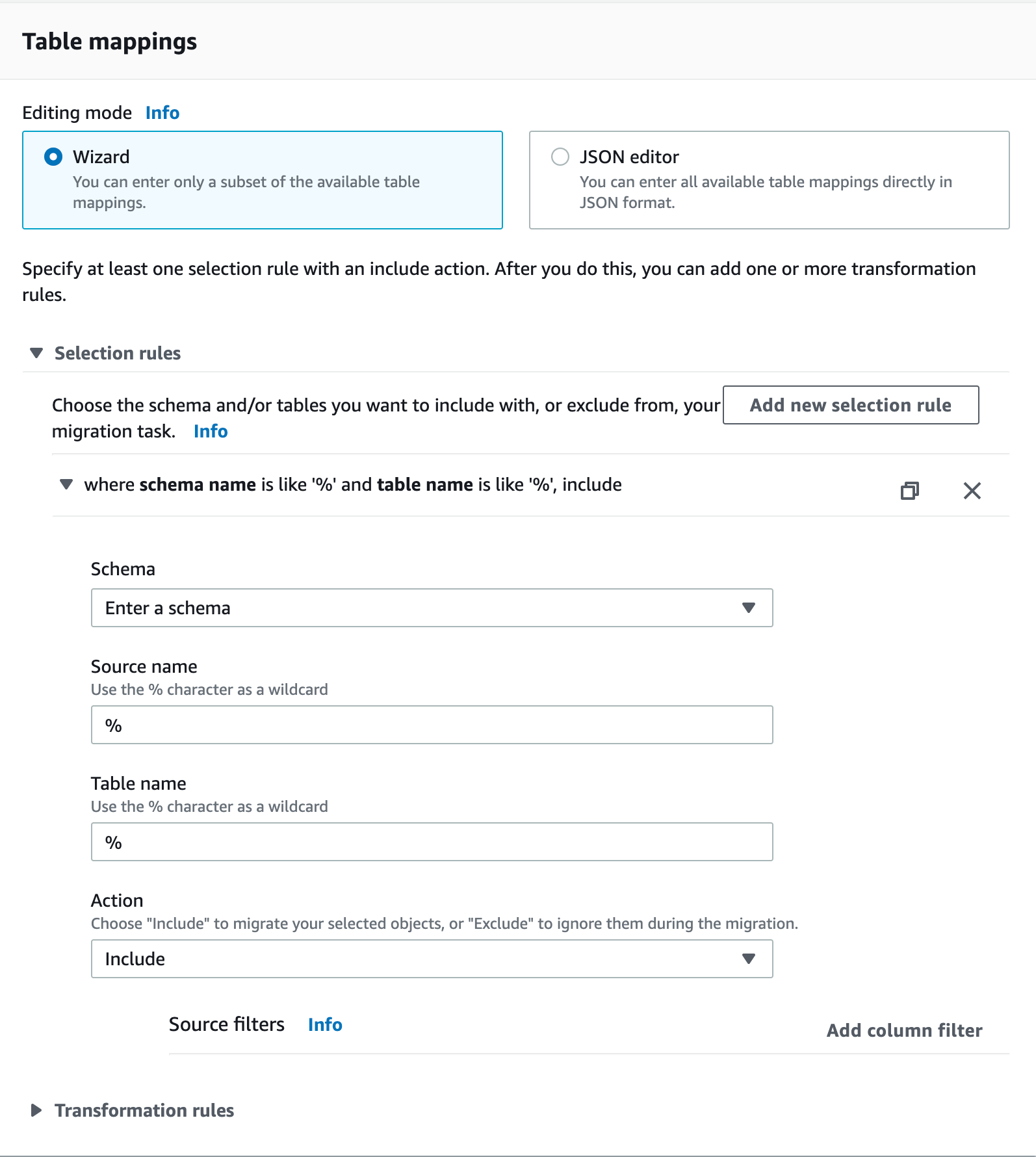
- For the Editing mode radio button, keep Wizard selected.
- Select Add new selection rule.
- In the Schema dropdown, select Enter a schema.
- Supply the appropriate Source name (schema name), Table name, and Action.
Use
% as an example of a wildcard for all schemas in a PostgreSQL database. However, in MySQL, using % as a schema name imports all the databases, including the metadata/system ones, as MySQL treats schemas and databases as the same.-
To improve full-load performance, consider defining a parallel load setting for selected columns. A parallel load splits the full-load task into multiple threads. For example:
For details, see the AWS documentation.
Step 3. Verify the migration
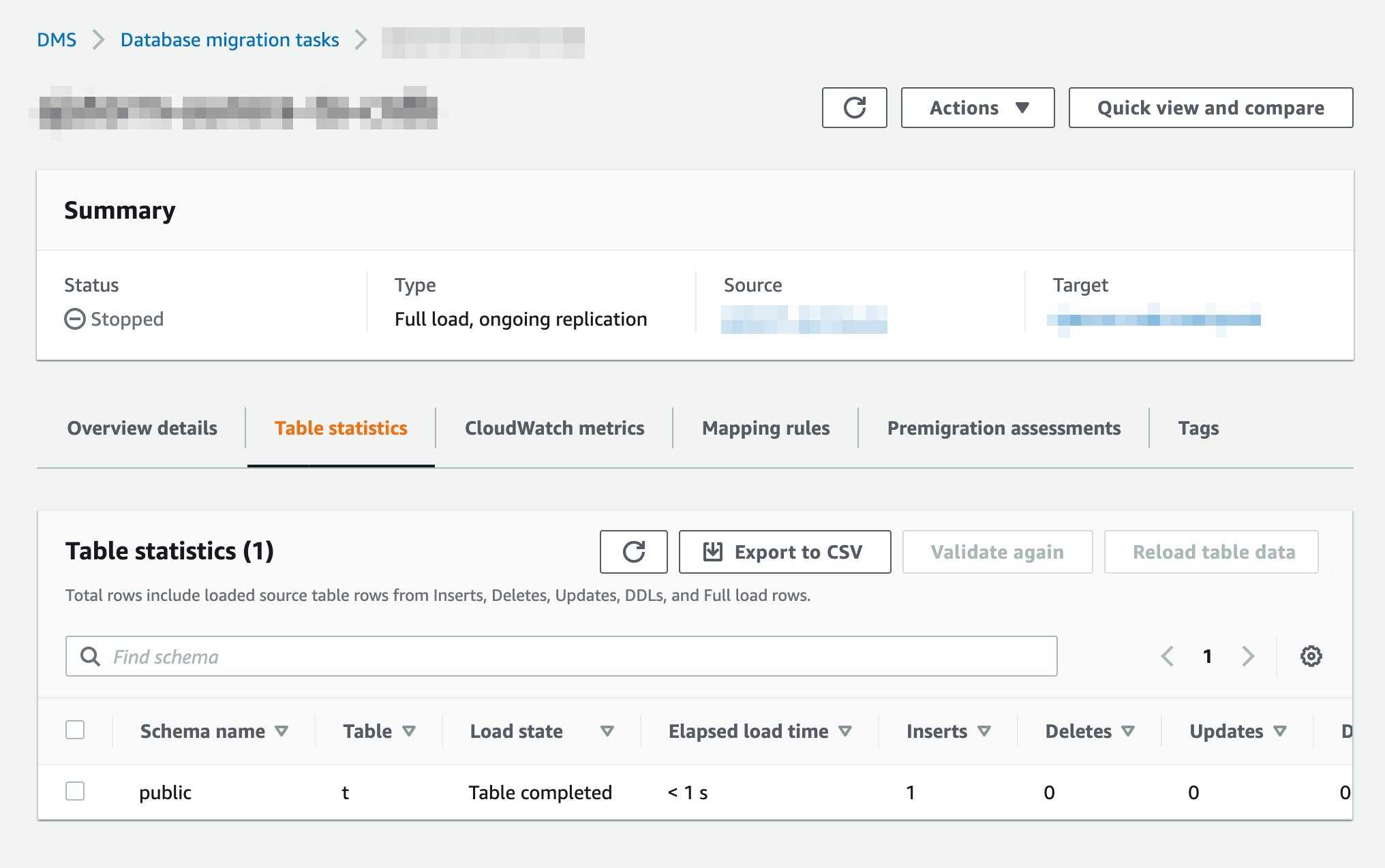
Data should now be moving from source to target. You can analyze the Table Statistics page for information about replication.- In AWS DMS, open Database migration tasks in the sidebar.
- Select the task you created in Step 2.
- Select Table statistics below the Summary section.
- Re-enable revision history for cluster backups.
- Re-create any that you dropped before migrating.
Optional configurations
AWS PrivateLink
If using CockroachDB Standard or Advanced, you can enable AWS PrivateLink to securely connect your AWS application with your CockroachDB Standard or Advanced cluster using a private endpoint. To configure AWS PrivateLink with CockroachDB Standard or Advanced, see .BatchApplyEnabled
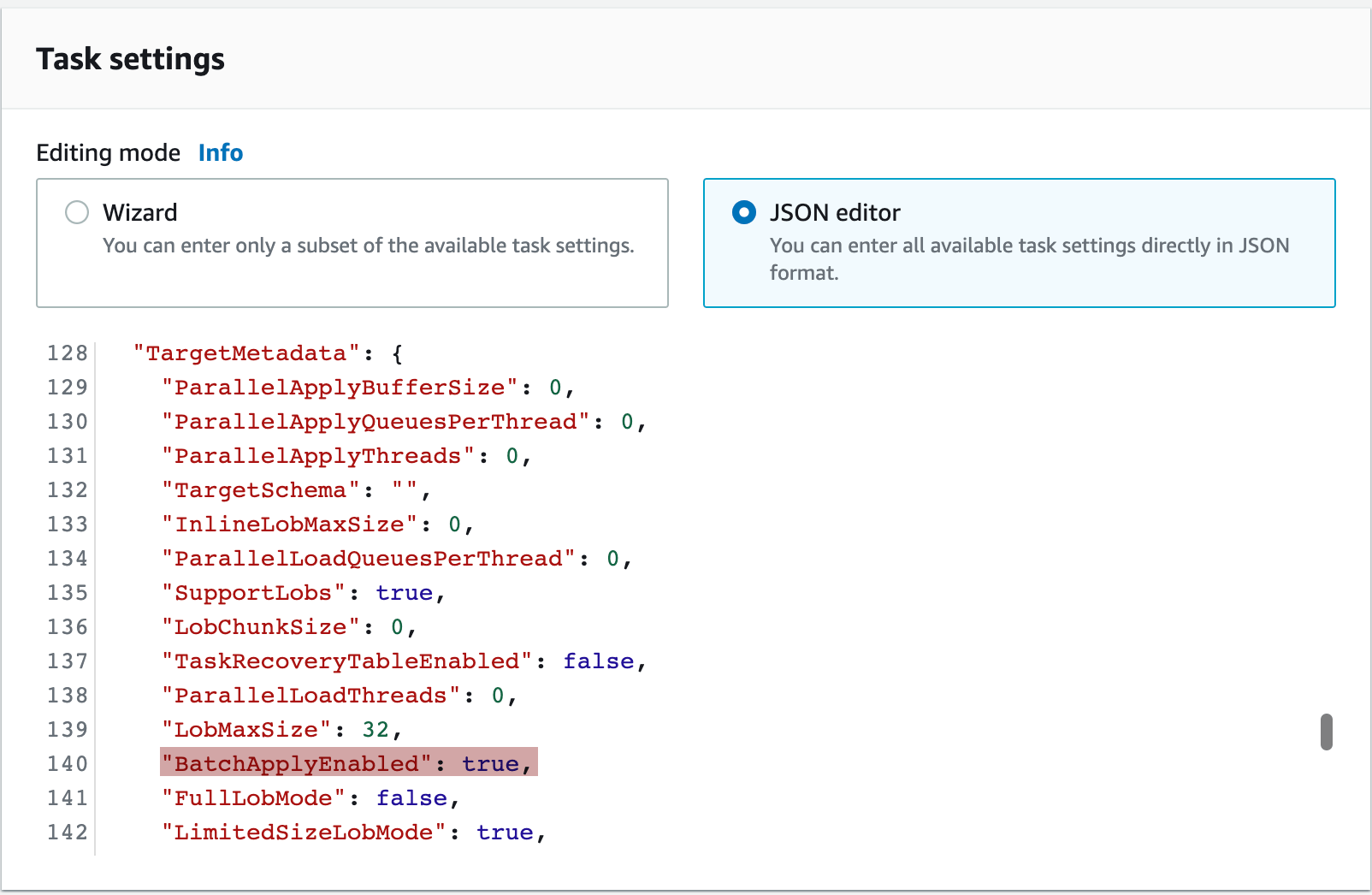
The BatchApplyEnabled setting can improve replication performance and is recommended for larger workloads.
- Open the existing database migration task.
- Choose your task, and then choose Modify.
- From the Task settings section, switch the Editing mode from Wizard to JSON editor. Locate the
BatchApplyEnabledsetting and change its value totrue. Information about theBatchApplyEnabledsetting can be found here.
BatchApplyEnabled does not work when using Drop tables on target as a target table preparation mode. Thus, all schema-related changes must be manually copied over if using BatchApplyEnabled.Troubleshoot common issues
-
For visibility into migration problems:
- Check the Amazon CloudWatch logs that you enabled for messages containing
SQL_ERROR. - Check the CockroachDB for messages related to
COPYstatements and the tables you are migrating. To access CockroachDB Standard or Advanced logs, you should have configured log export to Amazon CloudWatch before beginning the DMS migration.
- Check the Amazon CloudWatch logs that you enabled for messages containing
Personally identifiable information (PII) may be exported to CloudWatch unless you . Redacting logs may hide the data that is causing the issue, making it more difficult to troubleshoot.
-
If you encounter errors like the following:
In the Amazon CloudWatch logs:
In the CockroachDB :Try selecting Full LOB mode in your task settings. If this does not resolve the error, select Limited LOB mode and gradually increase the Maximum LOB size until the error goes away. For more information about LOB (large binary object) modes, see the AWS documentation.
-
The following error in the CockroachDB indicates that a large transaction such as an or has created more than can be quickly resolved:
This will likely cause high latency and due to . Try raising the value of the to configure CockroachDB to use more memory for quick intent resolution. Note that this memory limit is applied per-transaction. To prevent unexpected memory usage at higher workload concurrencies, you should also have proper memory accounting.
-
When using Truncate or Do nothing as a target table preparation mode, you cannot include tables with any hidden columns. You can verify which tables contain hidden columns by executing the following SQL query:
-
If you are migrating from PostgreSQL, are using a as a , and have selected Enable validation in your task settings, validation can fail due to a difference in how CockroachDB handles case sensitivity in strings.
To prevent this error, use
COLLATE "C"on the relevant columns in PostgreSQL or a such asCOLLATE "en_US"in CockroachDB. -
An AWS DMS migration can fail if the target schema has hidden columns. This includes databases with and with . This is because the
COPYstatement used by DMS is unable to process hidden columns. To prevent this error, set the in the DMS target endpoint configuration. Under Endpoint settings, add an AfterConnectScript setting with the valueSET expect_and_ignore_not_visible_columns_in_copy=on.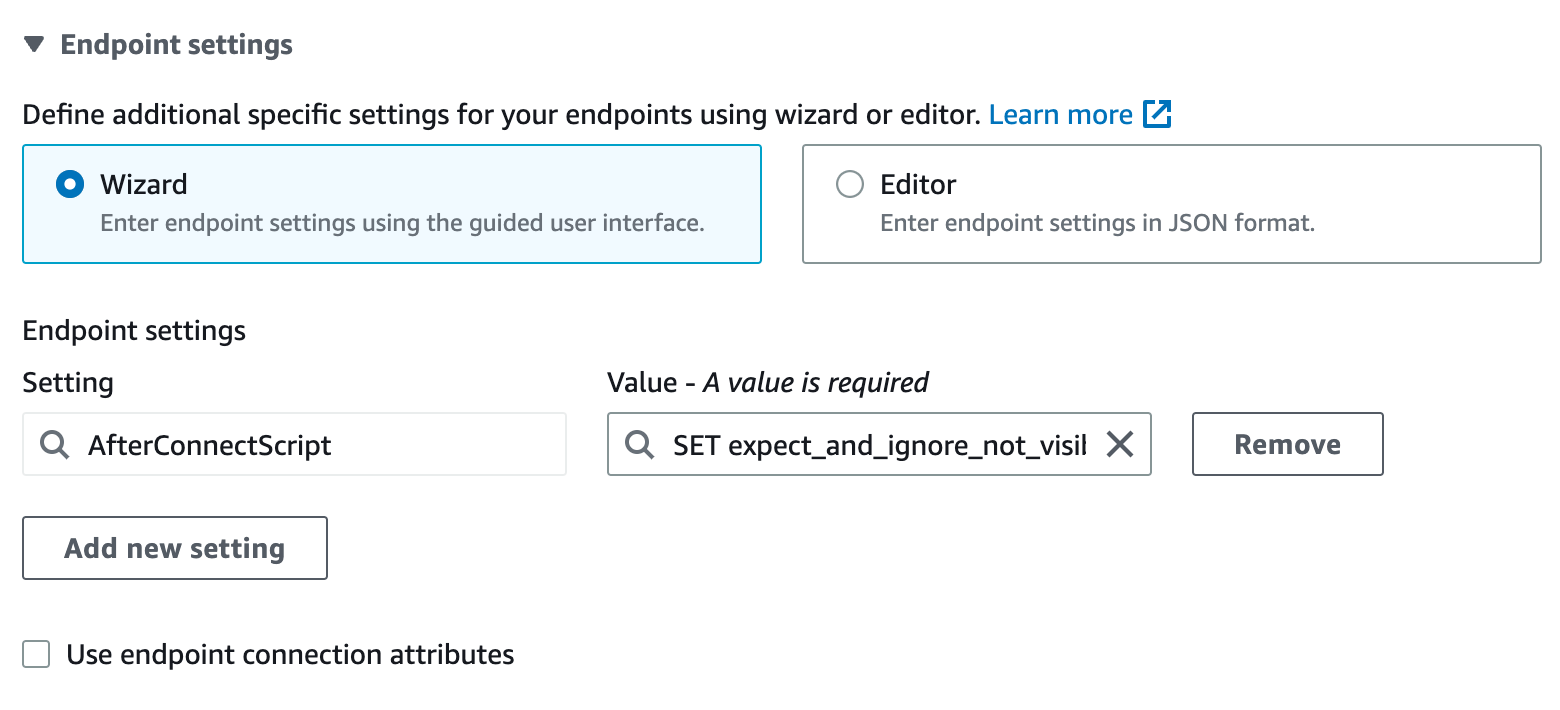
-
The following error in the CockroachDB indicates that AWS DMS is unable to copy into a table with a :
This is expected, as PostgreSQL does not allow copying into tables with a computed column. As a workaround, in CockroachDB and apply a transformation in DMS to exclude the computed column. Once the full load is done, add the computed column again in CockroachDB.
-
Run the following query from within the target CockroachDB cluster to identify common problems with any tables that were migrated. If problems are found, explanatory messages will be returned in the
cockroach sqlshell. - Refer to Debugging Your AWS DMS Migrations (Part 1, Part 2, and Part 3) on the AWS Database Blog.
-
If the migration is still failing, contact Support and include the following information when filing an issue:
- Source database name.
- CockroachDB version.
- Source database schema.
- CockroachDB database schema.
- Any relevant logs (e.g., the last 100 lines preceding the AWS DMS failure).
- Ideally, a sample dataset formatted as a database dump file or CSV.