

This page describes a Kubernetes deployment method that is considered “legacy” and will not be supported in a future release of CockroachDB. New CockroachDB deployments on Kubernetes are recommended to use the newer, fully-featured that’s easier to deploy and supports scaling of multi-region clusters. To migrate an existing deployment to use the CockroachDB operator, read the and migration guides.For more information on legacy Kubernetes deployments and support timelines, read the .
Before you begin
You must have the following set up before proceeding with this tutorial:- A running OpenShift cluster
This article assumes you have already installed the OpenShift Container Platform as your Kubernetes cluster. For details on this, see the OpenShift documentation.
Step 1. Create a CockroachDB namespace
- Create a
cockroachdbnamespace. You will create the CockroachDB cluster in this namespace:
oc runs kubectl commands on OpenShift clusters, using the same syntax.-
Set
cockroachdbas the default namespace:Validate that this was successful:This lets you issueoccommands without having to specify the namespace each time.
Step 2. Install the public operator
- Navigate to your OpenShift web console and click OperatorHub.
-
Enter “cockroach” in the search box. There are two tiles called CockroachDB Operator. Find the tile without the
Marketplacelabel (which requires a subscription).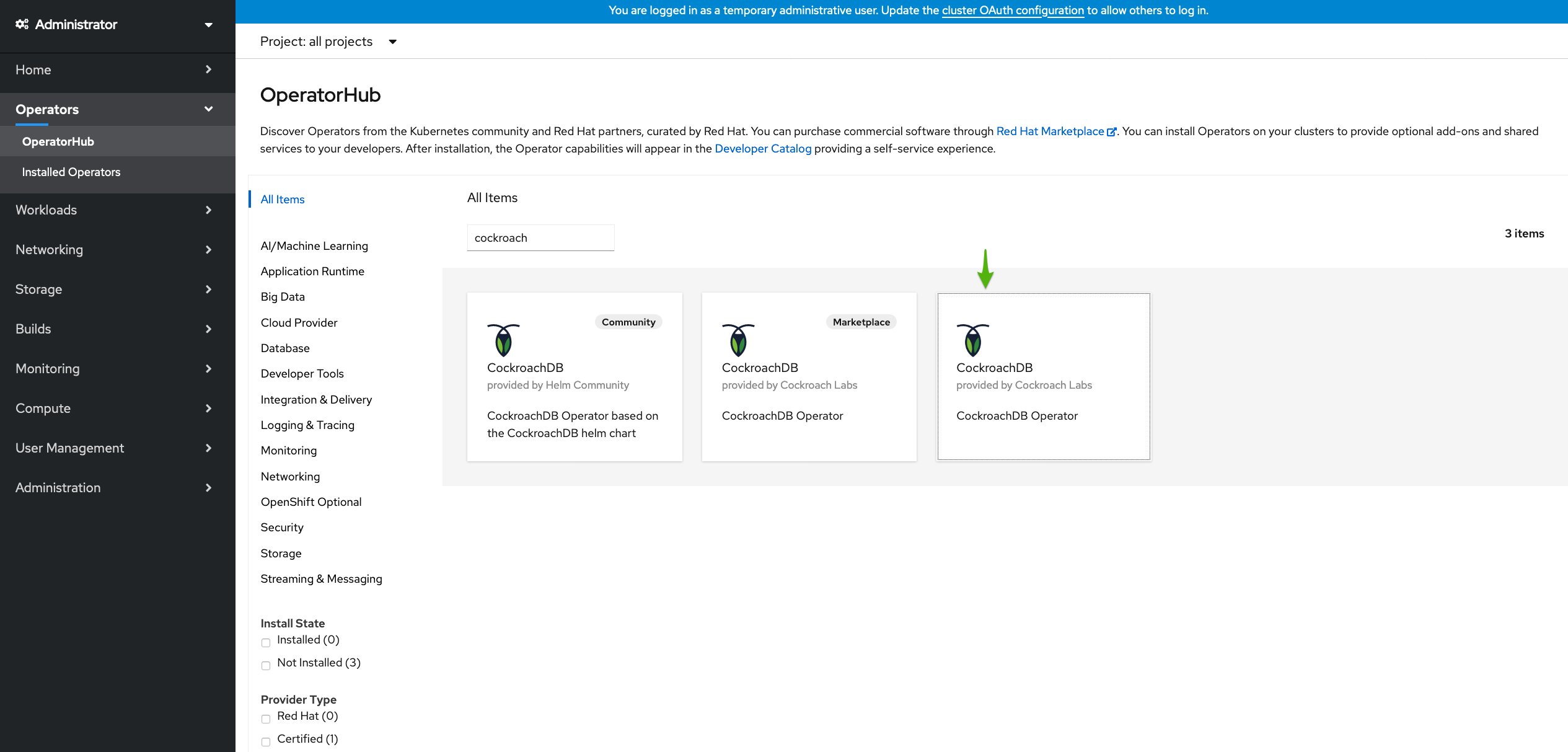
-
On the Install Operator page, select
cockroachdbin the Installed Namespace dropdown and click Install. -
Confirm that the operator is running:
Step 3. Start CockroachDB
- When the operator is ready, click View Operator to navigate to the Installed Operators page.
-
In the CockroachDB Operator tile, click Create instance.
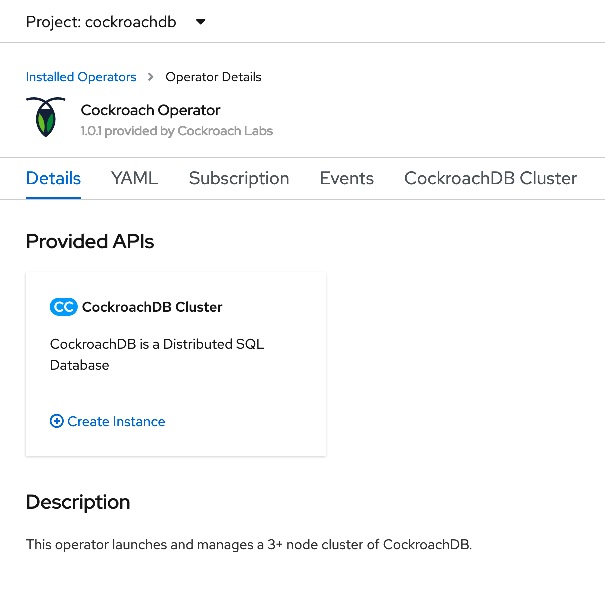
-
Make sure CockroachDB Version is set to a valid CockroachDB version. For a list of compatible image names, see
spec.containers.envin the pulic operator manifest on GitHub. - This will open the Create CrdbCluster page. By default, this deploys a 3-node secure cluster. Leave the other fields unchanged and click Create.
-
Navigate to Workloads > Pods and observe the pods being created:
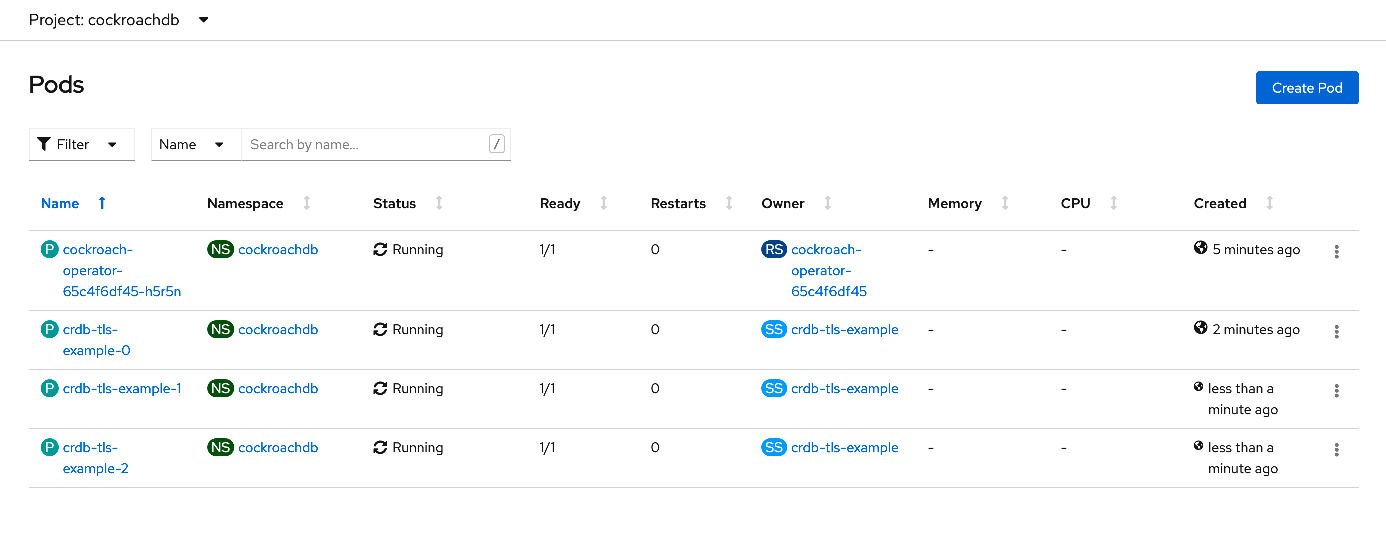
-
You can also use the command line to view the pods:
Step 4. Create a secure client pod
To use the CockroachDB SQL client, first launch a secure pod running thecockroach binary.
This can be defined with the following YAML, which mounts the operator’s generated certificates:
- On the Pods page, click Create Pod and replace the existing YAML with the above manifest.
-
Click Create. Return to the Pods page and check that the client pod
crdb-client-secureis running. This is also visible on the command-line:
Step 5. Use the CockroachDB SQL client
-
Start the CockroachDB from the client pod:
Now you can run SQL commands against the cluster.
-
Run some basic :
-
:
You will need this username and password to access the DB Console later.
-
Exit the SQL shell and pod:
--certs-dir or --host flags.
- Shell into the client pod and check for the necessary certs in the
--certs-dirdirectory:
-
Check the name of the
publicservice to use with the--hostflag:
Step 6. Access the DB Console
To access the CockroachDB cluster’s :-
On secure clusters, can only be accessed by
adminusers. Start the CockroachDB from the client pod: -
Assign
roachto theadminrole (you only need to do this once): -
Exit the SQL shell and pod:
-
In a new terminal window, port-forward from your local machine to the
crdb-tls-example-publicservice: - Go to https://localhost:8080 and log in with the username and password you created earlier.
If you are using Google Chrome, and you are getting an error about not being able to reach
localhost because its certificate has been revoked, go to chrome://flags/#allow-insecure-localhost, enable “Allow invalid certificates for resources loaded from localhost”, and then restart the browser. Enabling this Chrome feature degrades security for all sites running on localhost, not just CockroachDB’s DB Console, so be sure to enable the feature only temporarily.Step 7. Run a sample workload
To run a sample :-
Use the secure client pod to load the
movrschema on one of the CockroachDB pods: -
Initialize and run the workload for 3 minutes:
-
Select one of the CockroachDB pods on the Pods page and click Logs. This will reveal the JDBC URL that your application can use to connect to CockroachDB:
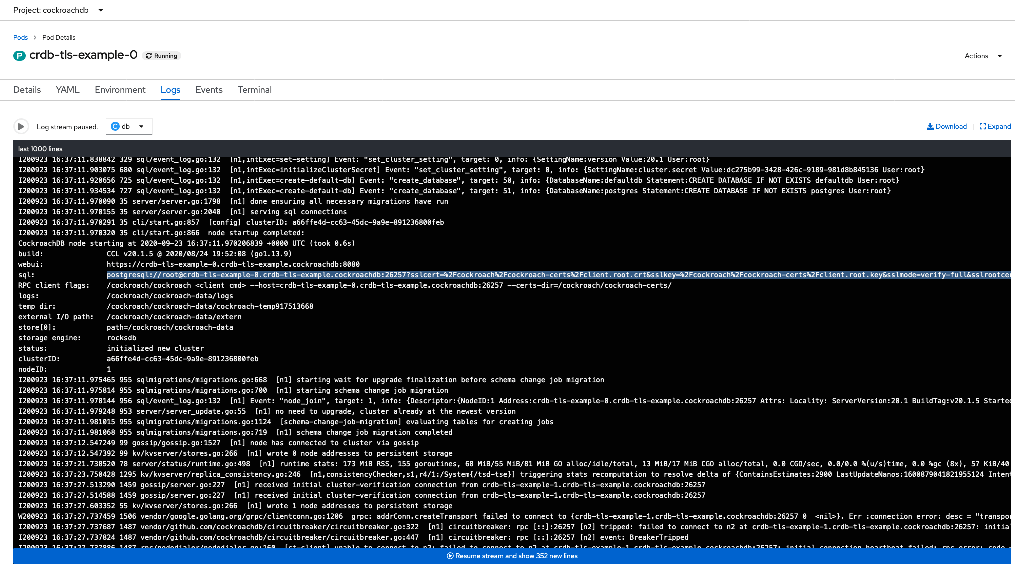
Step 8. Delete the cluster
If you want to continue using this cluster, see the documentation on , , , and the cluster.
-
Go to the Installed Operators page and find the cluster name of the CockroachDB cluster. Select Delete CrdbCluster from the menu.
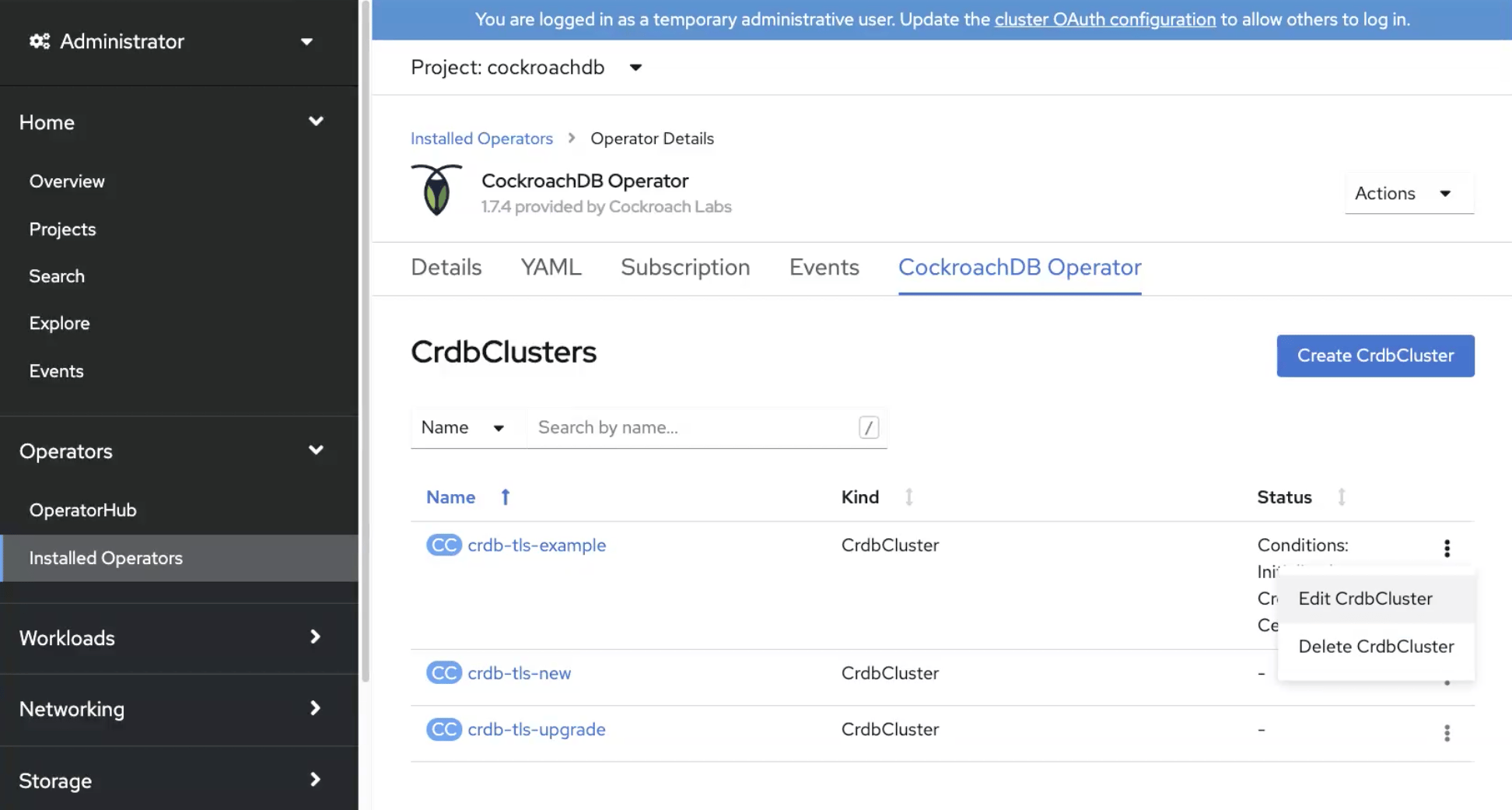
- The persistent volumes that were attached to the pods. This can be done by deleting the PVCs via Storage > Persistent Volume Claims.
- The opaque secrets used to authenticate the cluster. This can be done via Workloads > Secrets.
If you want to delete the persistent volumes and free up the storage used by CockroachDB, be sure you have a backup copy of your data. Data cannot be recovered once the persistent volumes are deleted. For more information, see the Kubernetes documentation.
For more information on managing secrets, see the Kubernetes documentation.