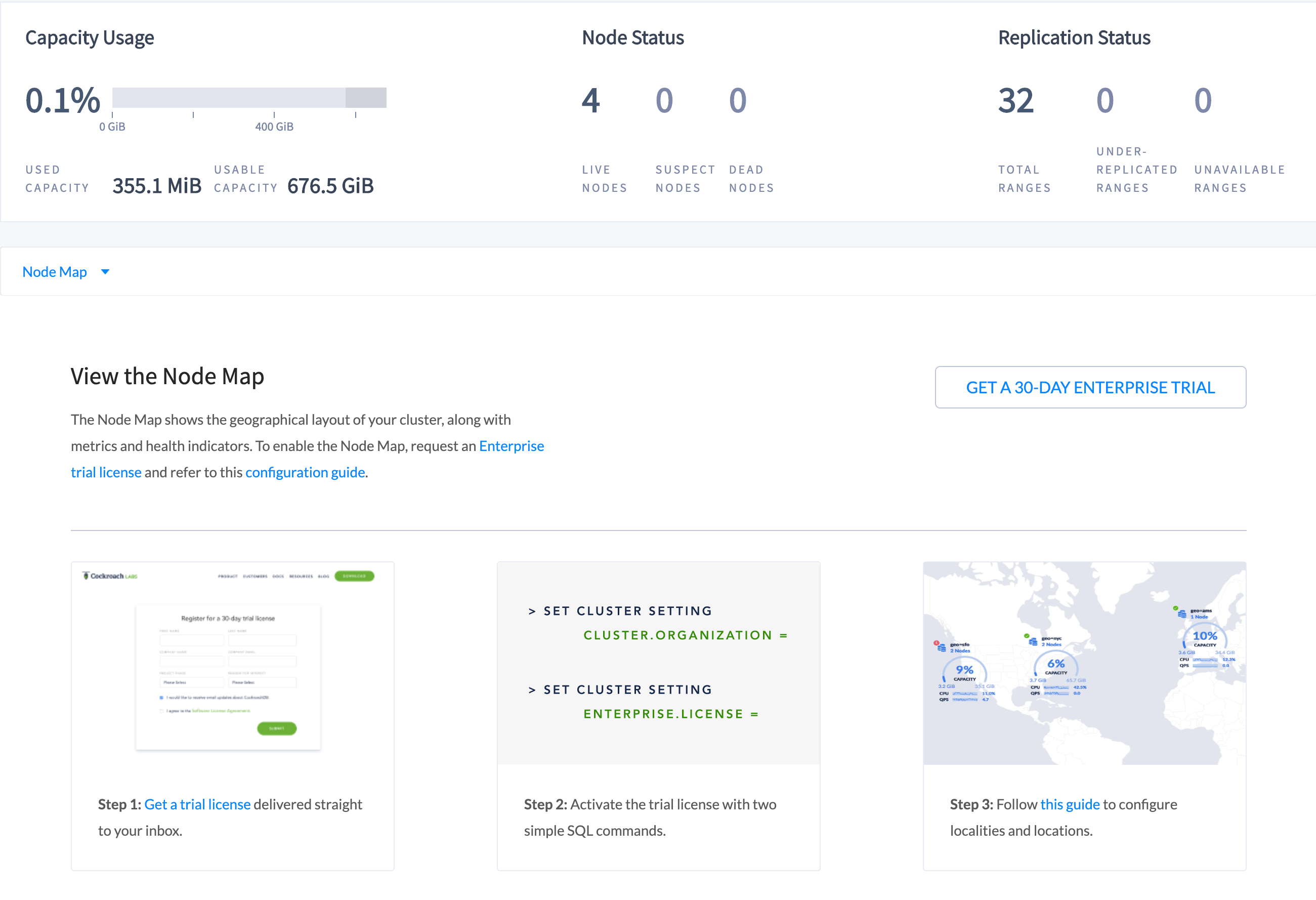
The Node Map is useful for:
  • Visualizing the geographic configuration of a multi-region cluster on a world map.
  • Viewing real-time cluster metrics.
  • Drilling down to individual nodes for monitoring health and performance.
This page guides you through the process of setting up and enabling the Node Map. DB Console

Set up and enable the Node Map

To enable the Node Map, you need to start the cluster with the correct flags and assign the latitude and longitude for each locality.
The Node Map will not be displayed until all nodes are started with the correct --locality flags and all localities are assigned the corresponding latitude and longitude.
Consider a four-node geo-distributed cluster with the following configuration:
NodeRegionDatacenter
Node1us-east-1us-east-1a
Node2us-east-1us-east-1b
Node3us-west-1us-west-1a
Node4eu-west-1eu-west-1a

Step 1. Start the nodes with the correct --locality flags

To start a new cluster with the correct --locality flags:
  1. Start Node 1:
  2. Start Node 2:
  3. Start Node 3:
  4. Start Node 4:
  5. Use the command to perform a one-time initialization of the cluster:
  6. .
  7. If the node list displays, click the selector Node map selector and select Node Map.
The following page is displayed: DB Console

Step 2. Set the Enterprise license and refresh the DB Console

The Node Map should now be displaying the highest-level localities you defined: DB Console
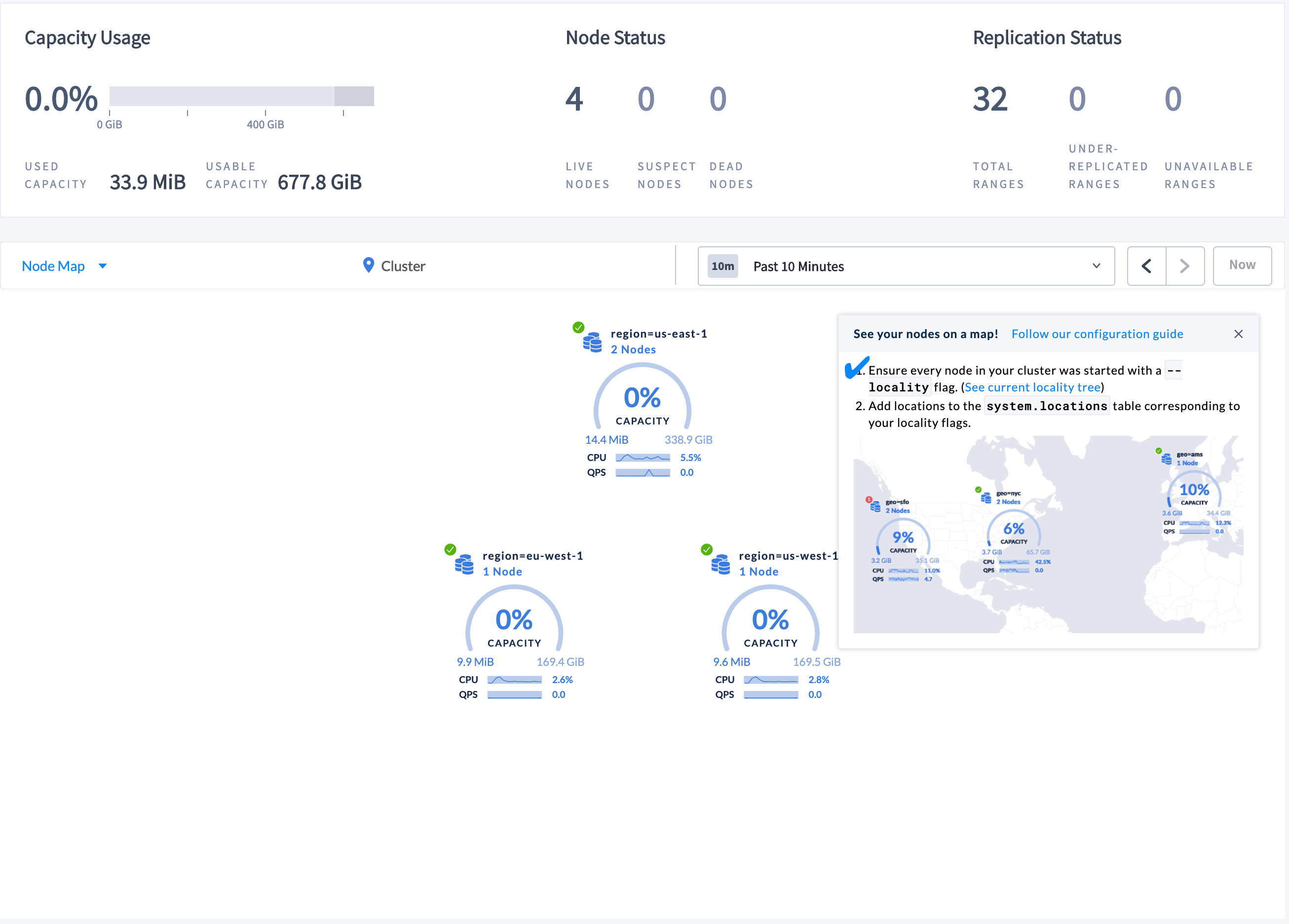
To be displayed on the world map, localities must be assigned a corresponding latitude and longitude.

Step 3. Set the latitudes and longitudes for the localities

  1. Launch the built-in SQL client:
  2. Insert the approximate latitude and longitude of each region into the system.locations table:
For the latitudes and longitudes of AWS, Azure, and Google Cloud regions, see Location Coordinates for Reference.

Step 4. Refresh the Node Map

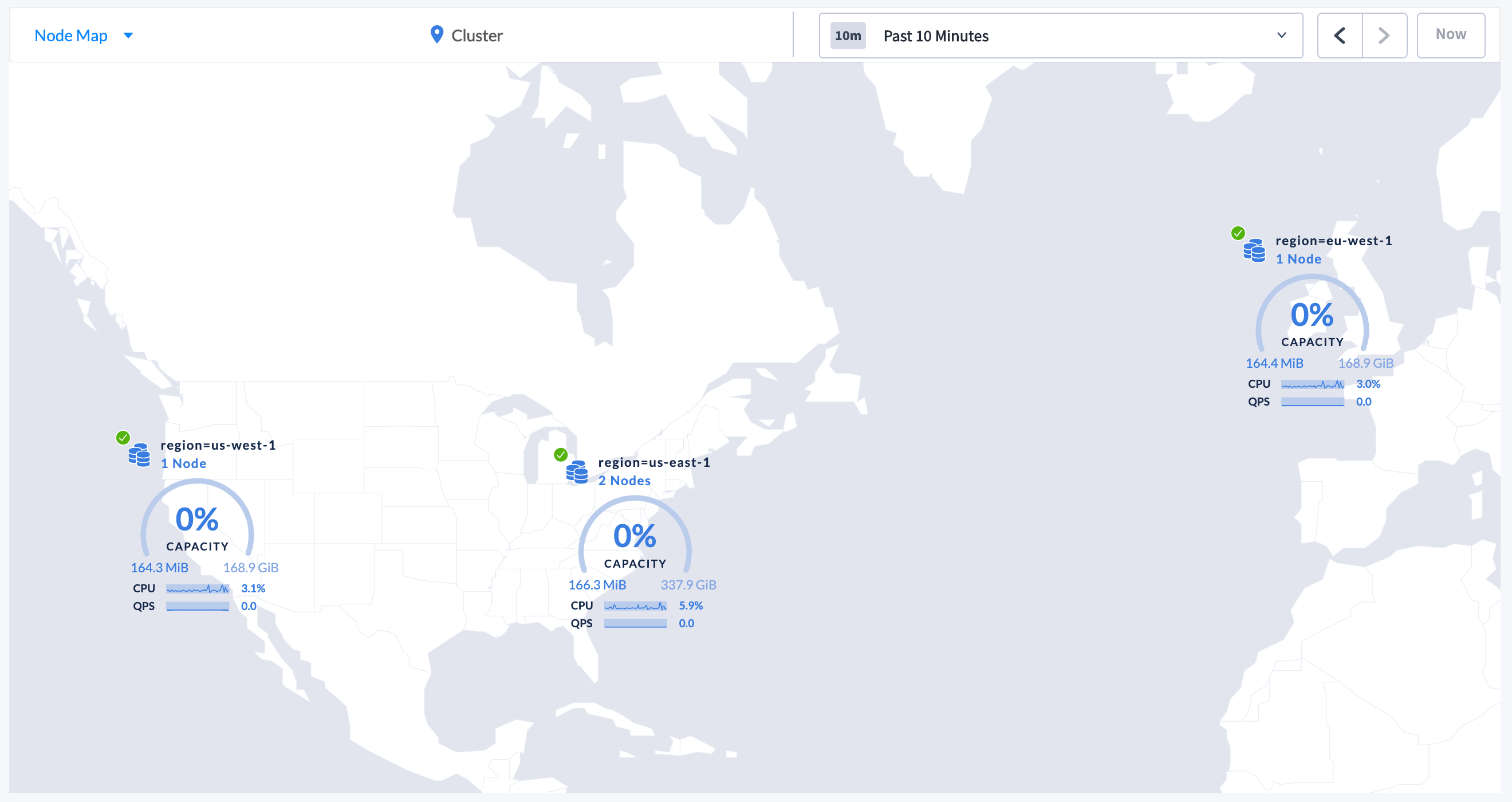
Refresh the DB Console to see the updated Node Map: DB Console
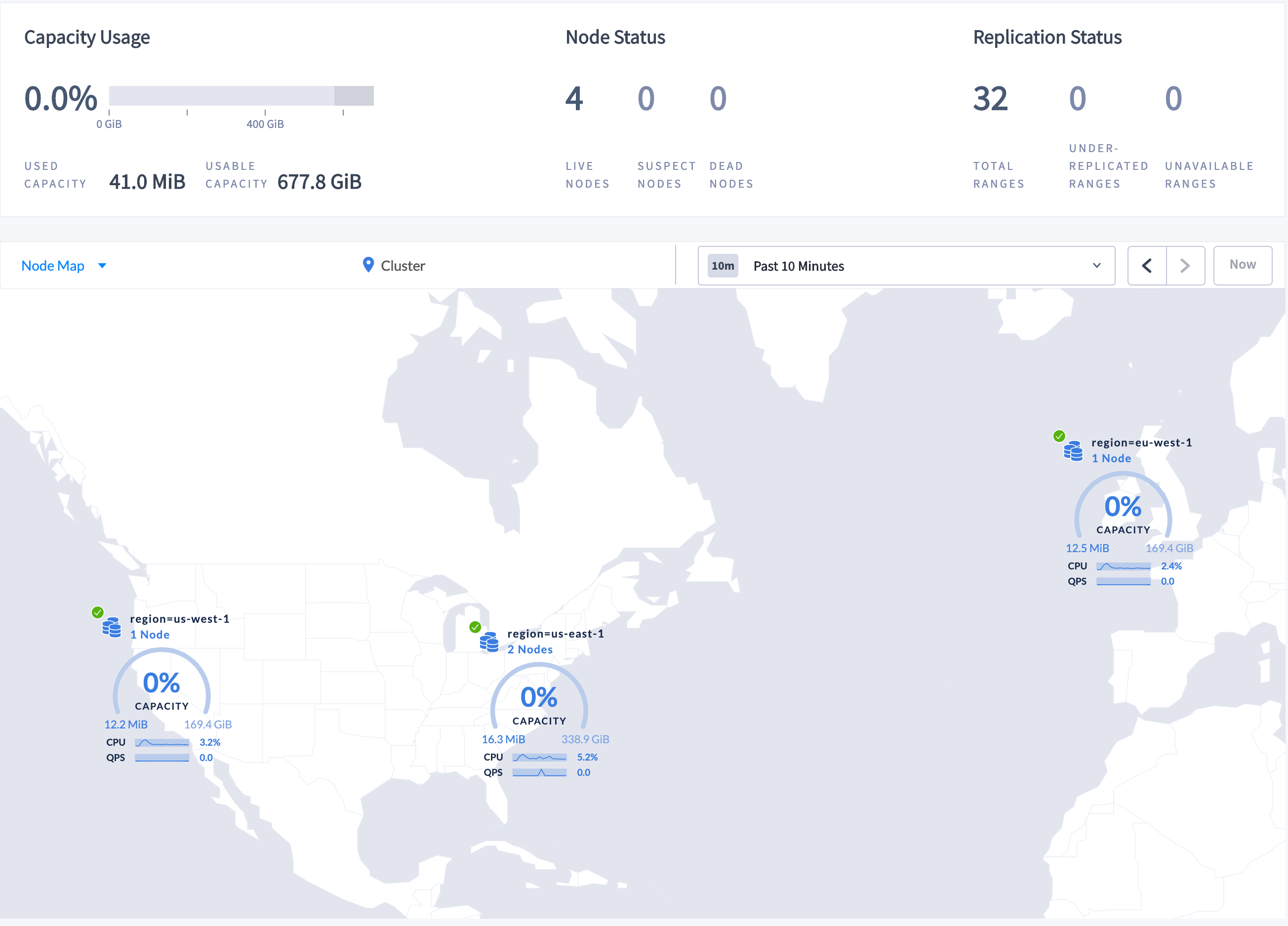
Step 5. Navigate the Node Map

To navigate to Node 2, which is in datacenter us-east-1a in the us-east-1 region:
  1. Click the map component marked as region=us-east-1 on the Node Map. The for the datacenter is displayed. DB Console
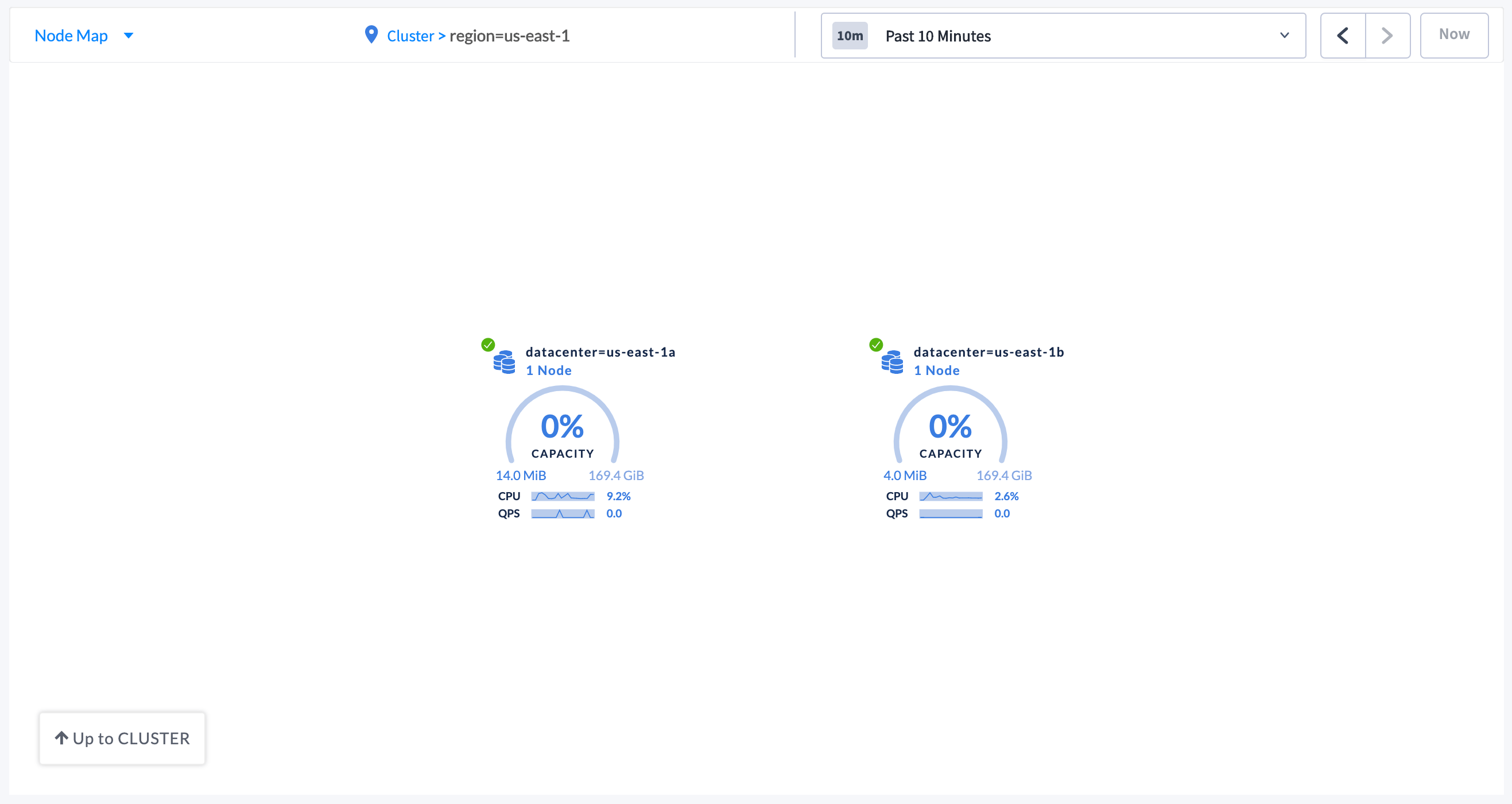
  2. Click the datacenter component marked as datacenter=us-east-1a. The individual are displayed. DB Console
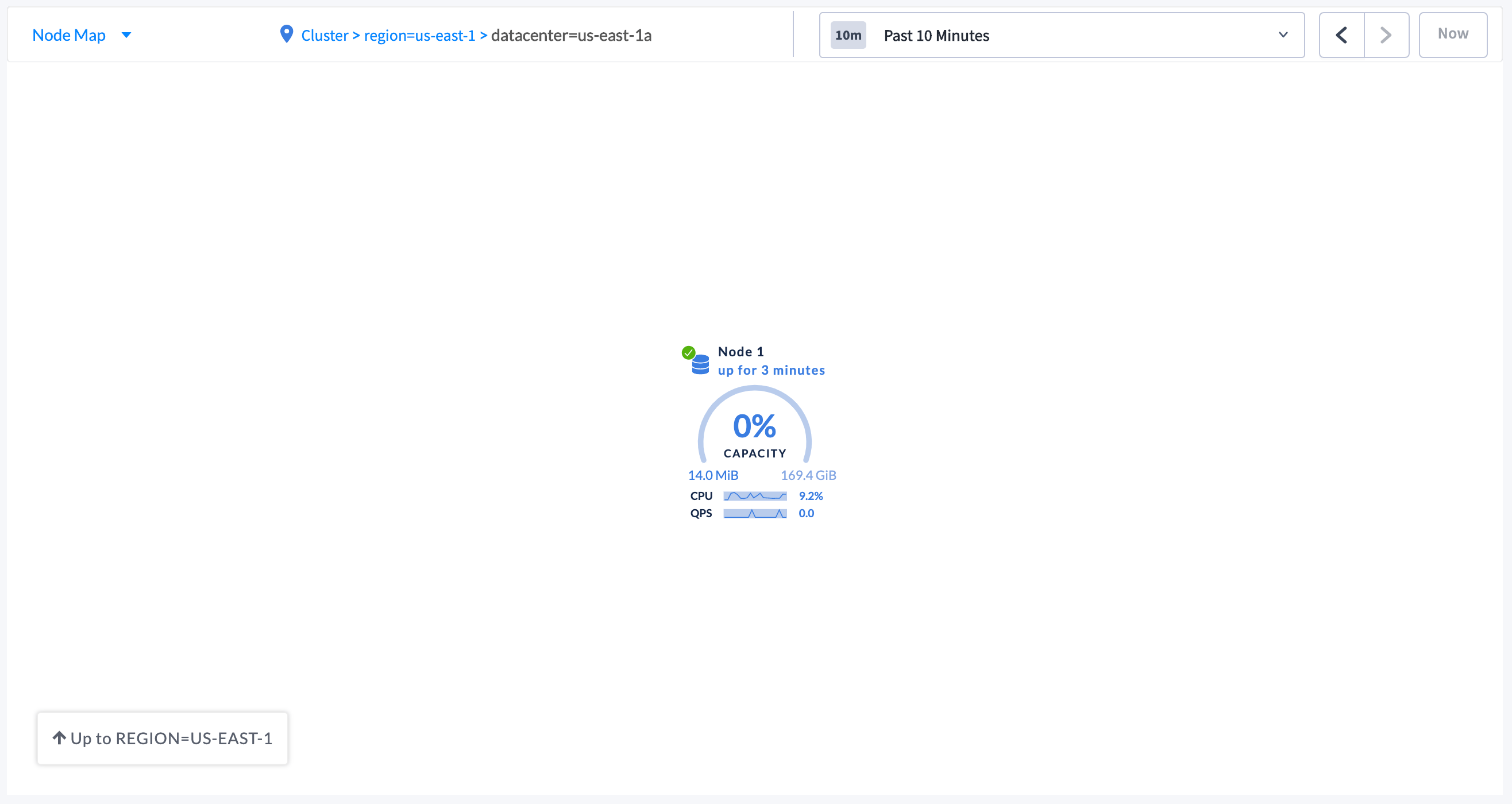
  3. To navigate back to the cluster view, either click Cluster in the breadcrumb trail at the top of the Node Map, or click Up to REGION=US-EAST-1 and then click Up to CLUSTER in the lower left-hand side of the Node Map.

Troubleshoot the Node Map

Node Map not displayed

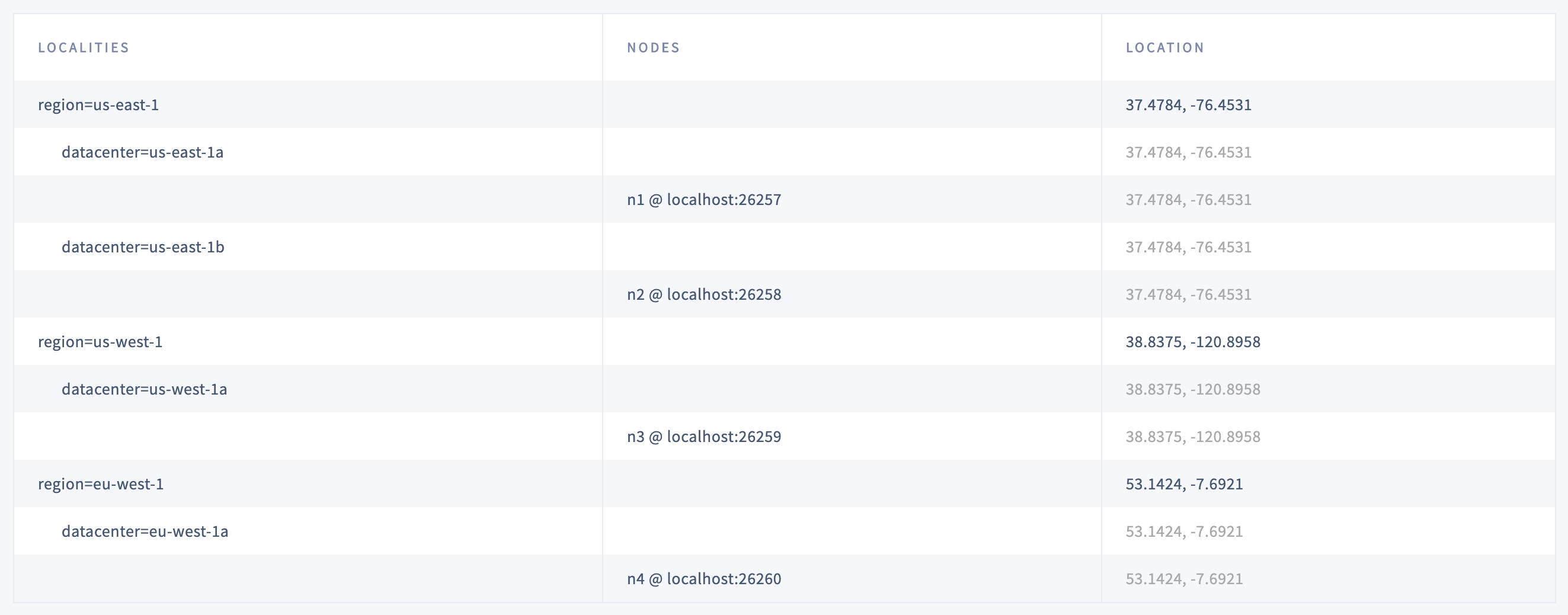
To verify all requirements, navigate to the debug page in the DB Console. DB Console The Localities debug page displays the following:
  • Localities configuration that you set up while starting the nodes with the --locality flags.
  • Nodes corresponding to each locality.
  • Latitude and longitude coordinates for each locality.

World Map not displayed for all locality levels

The world map is displayed only when localities are assigned latitude and longitude coordinates. If a locality (e.g., region) is not assigned latitude and longitude coordinates, it is displayed using the latitude and longitude of any lower-level localities it contains (e.g., datacenter). If no coordinates are available, localities are plotted in a circular layout.

Displayed Used Capacity value is more than configured Capacity

If you are testing your deployment locally with multiple CockroachDB nodes running on a single machine (this is ), you must explicitly per node in order to display the correct capacity. Otherwise, the machine’s actual disk capacity will be counted as a separate store for each node, thus inflating the computed capacity.

Location coordinates

This section lists the latitudes and longitudes of AWS, Azure, and Google Cloud regions.

AWS locations

LocationSQL Statement
US East (N. Virginia)INSERT into system.locations VALUES ('region', 'us-east-1', 37.478397, -76.453077)
US East (Ohio)INSERT into system.locations VALUES ('region', 'us-east-2', 40.417287, -76.453077)
US West (N. California)INSERT into system.locations VALUES ('region', 'us-west-1', 38.837522, -120.895824)
US West (Oregon)INSERT into system.locations VALUES ('region', 'us-west-2', 43.804133, -120.554201)
Canada (Central)INSERT into system.locations VALUES ('region', 'ca-central-1', 56.130366, -106.346771)
EU (Frankfurt)INSERT into system.locations VALUES ('region', 'eu-central-1', 50.110922, 8.682127)
EU (Ireland)INSERT into system.locations VALUES ('region', 'eu-west-1', 53.142367, -7.692054)
EU (London)INSERT into system.locations VALUES ('region', 'eu-west-2', 51.507351, -0.127758)
EU (Paris)INSERT into system.locations VALUES ('region', 'eu-west-3', 48.856614, 2.352222)
Asia Pacific (Tokyo)INSERT into system.locations VALUES ('region', 'ap-northeast-1', 35.689487, 139.691706)
Asia Pacific (Seoul)INSERT into system.locations VALUES ('region', 'ap-northeast-2', 37.566535, 126.977969)
Asia Pacific (Osaka-Local)INSERT into system.locations VALUES ('region', 'ap-northeast-3', 34.693738, 135.502165)
Asia Pacific (Singapore)INSERT into system.locations VALUES ('region', 'ap-southeast-1', 1.352083, 103.819836)
Asia Pacific (Sydney)INSERT into system.locations VALUES ('region', 'ap-southeast-2', -33.86882, 151.209296)
Asia Pacific (Mumbai)INSERT into system.locations VALUES ('region', 'ap-south-1', 19.075984, 72.877656)
South America (São Paulo)INSERT into system.locations VALUES ('region', 'sa-east-1', -23.55052, -46.633309)

Azure locations

LocationSQL Statement
eastasia (East Asia)INSERT into system.locations VALUES ('region', 'eastasia', 22.267, 114.188)
southeastasia (Southeast Asia)INSERT into system.locations VALUES ('region', 'southeastasia', 1.283, 103.833)
centralus (Central US)INSERT into system.locations VALUES ('region', 'centralus', 41.5908, -93.6208)
eastus (East US)INSERT into system.locations VALUES ('region', 'eastus', 37.3719, -79.8164)
eastus2 (East US 2)INSERT into system.locations VALUES ('region', 'eastus2', 36.6681, -78.3889)
westus (West US)INSERT into system.locations VALUES ('region', 'westus', 37.783, -122.417)
northcentralus (North Central US)INSERT into system.locations VALUES ('region', 'northcentralus', 41.8819, -87.6278)
southcentralus (South Central US)INSERT into system.locations VALUES ('region', 'southcentralus', 29.4167, -98.5)
northeurope (North Europe)INSERT into system.locations VALUES ('region', 'northeurope', 53.3478, -6.2597)
westeurope (West Europe)INSERT into system.locations VALUES ('region', 'westeurope', 52.3667, 4.9)
japanwest (Japan West)INSERT into system.locations VALUES ('region', 'japanwest', 34.6939, 135.5022)
japaneast (Japan East)INSERT into system.locations VALUES ('region', 'japaneast', 35.68, 139.77)
australiaeast (Australia East)INSERT into system.locations VALUES ('region', 'australiaeast', -33.86, 151.2094)
australiasoutheast (Australia Southeast)INSERT into system.locations VALUES ('region', 'australiasoutheast', -37.8136, 144.9631)
southindia (South India)INSERT into system.locations VALUES ('region', 'southindia', 12.9822, 80.1636)
centralindia (Central India)INSERT into system.locations VALUES ('region', 'centralindia', 18.5822, 73.9197)
westindia (West India)INSERT into system.locations VALUES ('region', 'westindia', 19.088, 72.868)
canadacentral (Canada Central)INSERT into system.locations VALUES ('region', 'canadacentral', 43.653, -79.383)
canadaeast (Canada East)INSERT into system.locations VALUES ('region', 'canadaeast', 46.817, -71.217)
uksouth (UK South)INSERT into system.locations VALUES ('region', 'uksouth', 50.941, -0.799)
ukwest (UK West)INSERT into system.locations VALUES ('region', 'ukwest', 53.427, -3.084)
westcentralus (West Central US)INSERT into system.locations VALUES ('region', 'westcentralus', 40.890, -110.234)
westus2 (West US 2)INSERT into system.locations VALUES ('region', 'westus2', 47.233, -119.852)
koreacentral (Korea Central)INSERT into system.locations VALUES ('region', 'koreacentral', 37.5665, 126.9780)
koreasouth (Korea South)INSERT into system.locations VALUES ('region', 'koreasouth', 35.1796, 129.0756)
francecentral (France Central)INSERT into system.locations VALUES ('region', 'francecentral', 46.3772, 2.3730)
francesouth (France South)INSERT into system.locations VALUES ('region', 'francesouth', 43.8345, 2.1972)

Google Cloud locations

LocationSQL Statement
us-east1 (South Carolina)INSERT into system.locations VALUES ('region', 'us-east1', 33.836082, -81.163727)
us-east4 (N. Virginia)INSERT into system.locations VALUES ('region', 'us-east4', 37.478397, -76.453077)
us-central1 (Iowa)INSERT into system.locations VALUES ('region', 'us-central1', 42.032974, -93.581543)
us-west1 (Oregon)INSERT into system.locations VALUES ('region', 'us-west1', 43.804133, -120.554201)
northamerica-northeast1 (Montreal)INSERT into system.locations VALUES ('region', 'northamerica-northeast1', 56.130366, -106.346771)
europe-west1 (Belgium)INSERT into system.locations VALUES ('region', 'europe-west1', 50.44816, 3.81886)
europe-west2 (London)INSERT into system.locations VALUES ('region', 'europe-west2', 51.507351, -0.127758)
europe-west3 (Frankfurt)INSERT into system.locations VALUES ('region', 'europe-west3', 50.110922, 8.682127)
europe-west4 (Netherlands)INSERT into system.locations VALUES ('region', 'europe-west4', 53.4386, 6.8355)
europe-west6 (Zürich)INSERT into system.locations VALUES ('region', 'europe-west6', 47.3769, 8.5417)
asia-east1 (Taiwan)INSERT into system.locations VALUES ('region', 'asia-east1', 24.0717, 120.5624)
asia-northeast1 (Tokyo)INSERT into system.locations VALUES ('region', 'asia-northeast1', 35.689487, 139.691706)
asia-southeast1 (Singapore)INSERT into system.locations VALUES ('region', 'asia-southeast1', 1.352083, 103.819836)
australia-southeast1 (Sydney)INSERT into system.locations VALUES ('region', 'australia-southeast1', -33.86882, 151.209296)
asia-south1 (Mumbai)INSERT into system.locations VALUES ('region', 'asia-south1', 19.075984, 72.877656)
southamerica-east1 (São Paulo)INSERT into system.locations VALUES ('region', 'southamerica-east1', -23.55052, -46.633309)