

.request_transaction_bundle to request a transaction diagnostics bundle for a specified .
Requesting a transaction diagnostics bundle introduces performance overhead. This feature is primarily intended for use under the guidance of Cockroach Labs Support.
Transaction diagnostics do not contain a for statements executed inside or . However, they do contain a statement diagnostic bundle for the top-level invocation, or call, of the user-defined function or stored procedure.
Required privileges
To use this function on a , you must be an or a SQL user with the or . If the user has onlyVIEWACTIVITYREDACTED, they can request only redacted bundles.
Function signature
Parameters
transaction_fingerprint_id: A hex-encoded ID of the to capture. The fingerprint ID must exist incrdb_internal.transaction_statistics, which is the system of record for transaction fingerprints.sampling_probability: A probability value (between 0 and 1) for sampling whether a transaction bundle should be recorded. If 0 is provided, there is no sampling; the next execution of the transaction will be captured.min_execution_latency: The minimum execution time required for the transaction to be considered. Ifsampling_probabilityis non-zero, this value must also be non-zero.expires_after: The duration for which the request remains active. A value of 0 keeps the request open until fulfilled or canceled.redacted: Specifies whether the resulting bundle should be redacted.
Return values
request_id: The ID of the generated request, orNULLif the request could not be created.created: Returnstrueif the request is successfully created, orfalseif the specified fingerprint ID does not exist.
Troubleshooting example
To troubleshoot with a transaction diagnostics bundle, follow these steps:- Identify the transaction fingerprint ID to generate a bundle for.
- Create a bundle request for that fingerprint ID.
- Download the bundle from .
- Inspect the bundle.
Setup
For this example, set the to enable filtering:Step 1. Identify the transaction fingerprint ID
Identify the transaction fingerprint ID of the example transaction by navigating to the page in the . On the tab, search the Top500 by Transaction Time in the Past Hour and click Apply to list transactions. Filter the transactions by Application Name: cockroachdb_test.
In the Transactions column, click the transaction fingerprint SELECT pg_sleep(_), _ to open the page for that fingerprint.
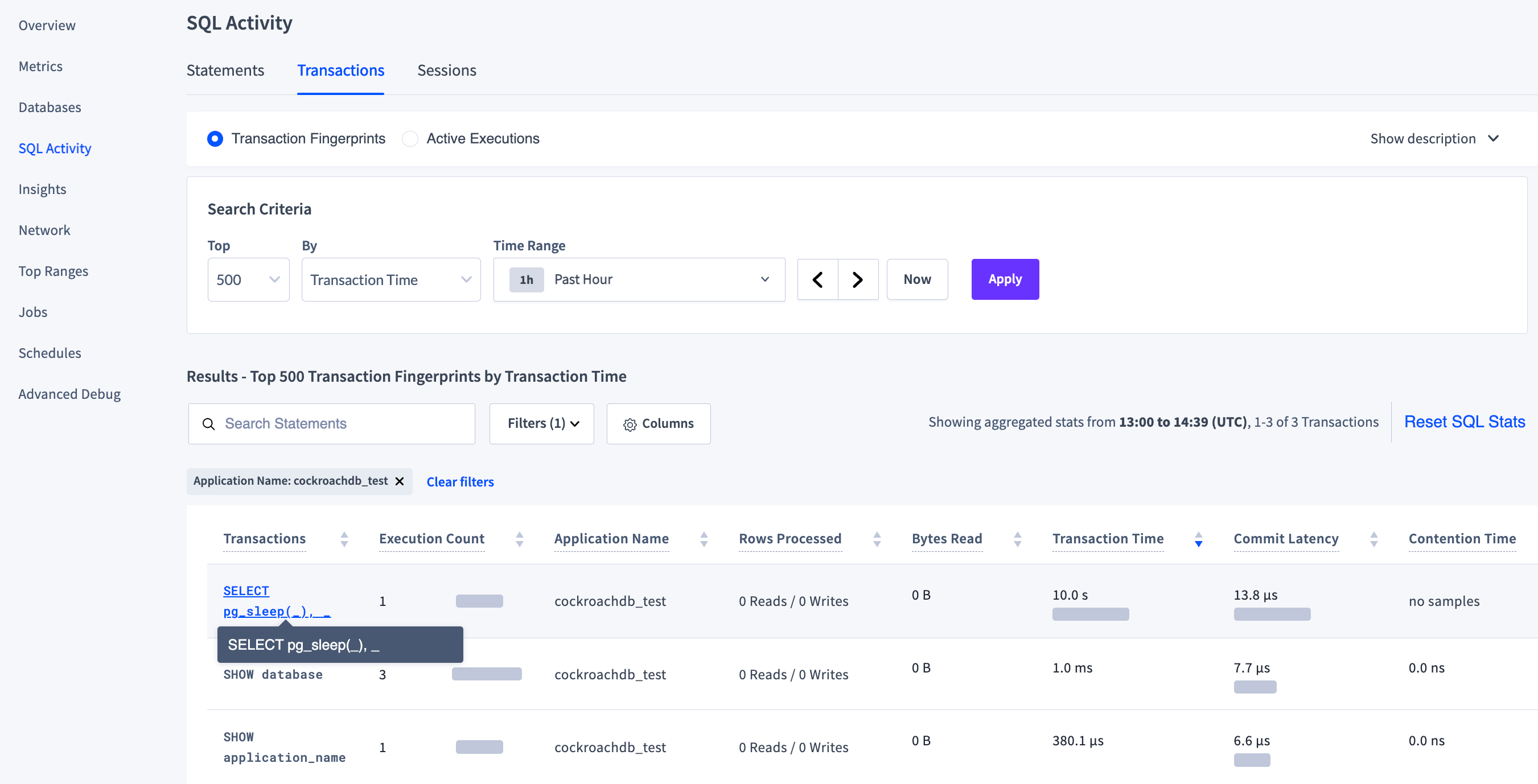
afdd4059a899442e.
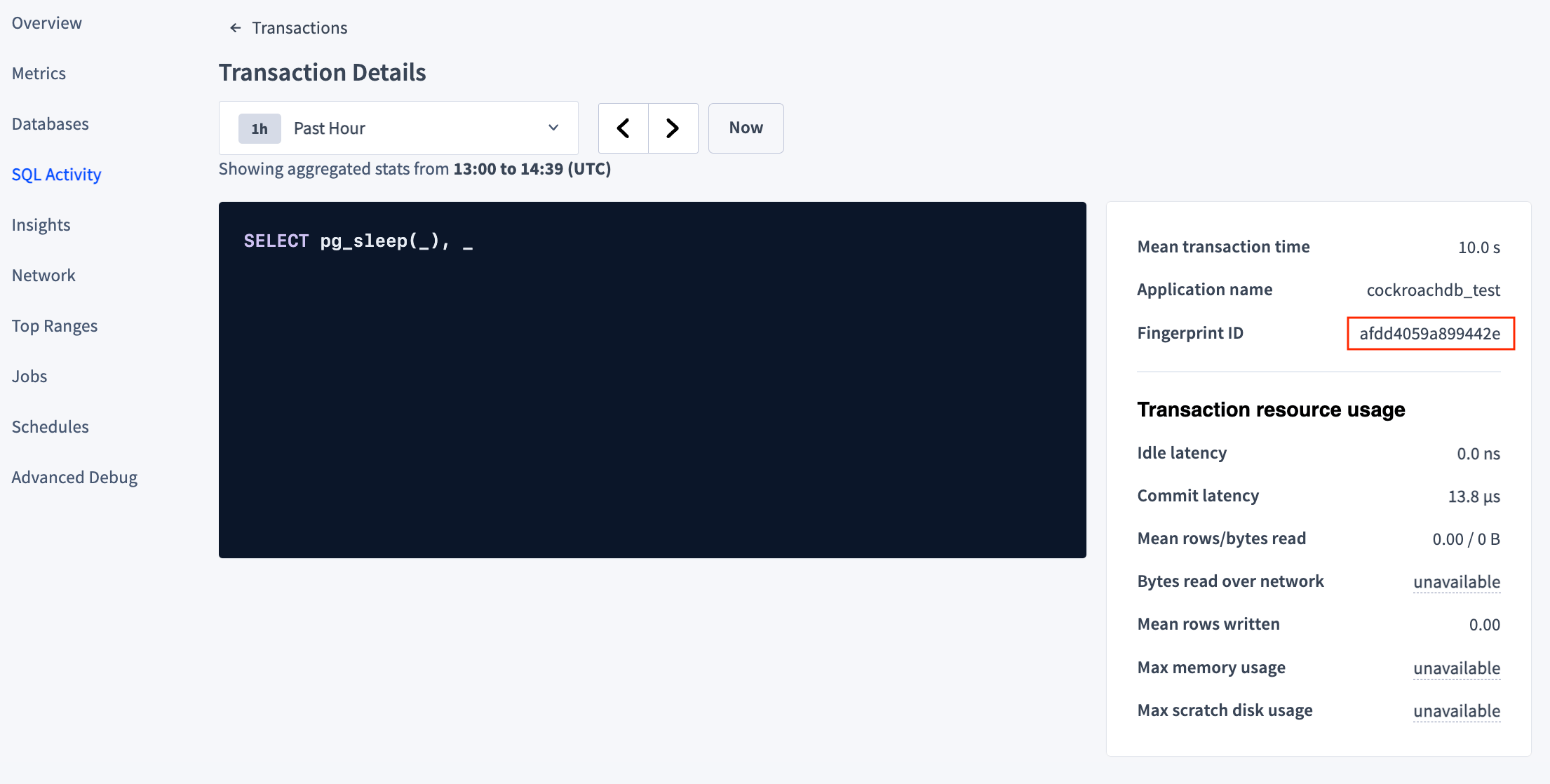
https://127.0.0.1:29001/#/transaction/12672355680315327534?appNames=cockroachdb_test. The decimal value of the fingerprint is 12672355680315327534.
Step 2. Create a bundle request
Create a transaction diagnostics request to be fulfilled the next time the relevant transaction is executed:crdb_internal.request_transaction_bundle() are:
transaction_fingerprint_id:'afdd4059a899442e', the hexadecimal fingerprint ID from Step 1.sampling_probability:0, which disables sampling.min_execution_latency:'0', which sets no minimum execution time.expires_after:'0', which keeps the request open until fulfilled or canceled.redacted:false, which does not redact the bundle.
request_id and a created boolean flag. This will create an entry in the system.transaction_diagnostics_request table.
https://{host}:{port}/#/reports/diagnosticshistory?tab=Transactions. The page initially displays the following information:
- The date and time the request was Activated on.
Transaction 12672355680315327534(the decimal form of the transaction fingerprint ID from Step 1).- A Status of
WAITING. - A button to Cancel request (Use this if a transaction diagnostics bundle is no longer needed).
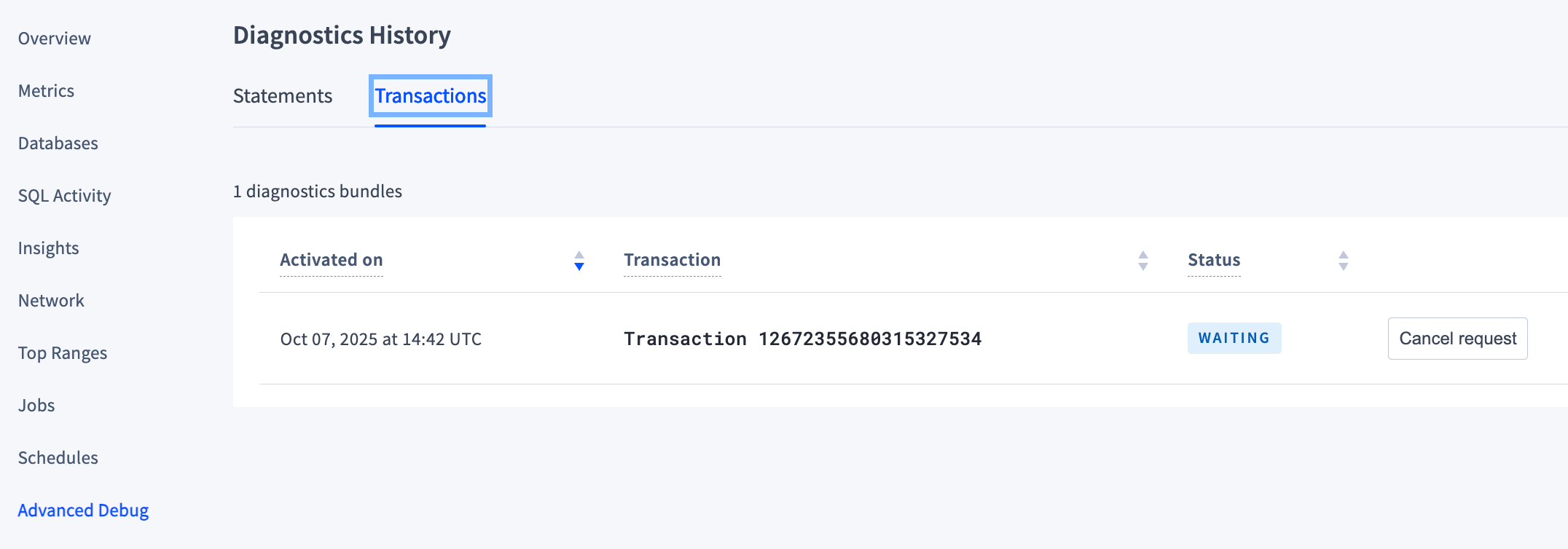
Step 3. Download the bundle
To fulfill the request, run the explicit transaction again. Note that the constant values in the transaction do not have to exactly match the original run. In the second execution of the transaction, the number of seconds differs from the original10 and the string differs from the original 'cockroachdb_test'.
- The date and time the request was Activated on.
- The statements for the transaction fingerprint.
- A Status of
READY. - A Bundle.zip link.
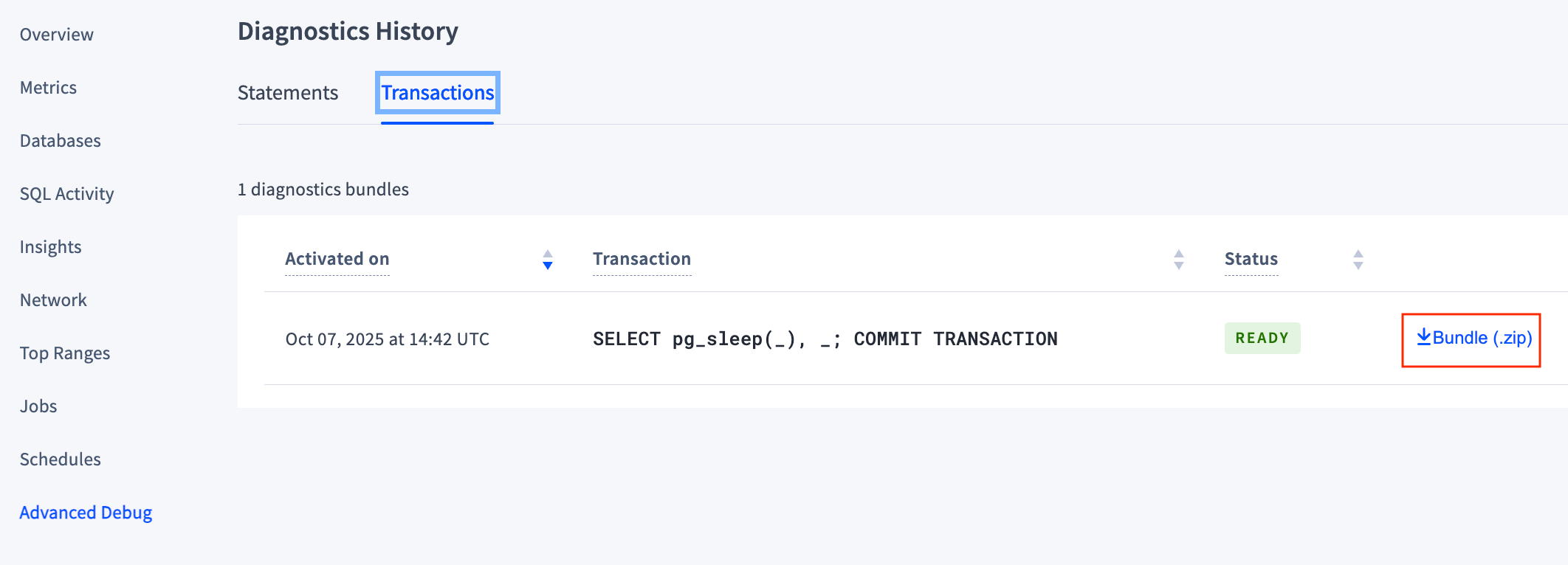
txn-bundle-1113386693458034689.zip using the transaction_diagnostics_id from the system.transaction_diagnostics_requests table.
Step 4. Inspect the bundle
Unzip the transaction diagnostic bundle and examine its contents. It containszip files for each statement as well as a zip file of the transaction traces:
zip file transaction-1113386693458034689.zip. It consists of transaction traces in various formats (including a JSON file that can be ):